
Components Manual
Platform components guide
This guide explains how to configure and implement components using the Arkus platform.
Configuring components
After adding a component to a flow, you can configure its parameters and connect it to other components to define data flow and execution logic. Each component includes inputs, outputs, parameters, and controls specific to its purpose.
Component settings
To access a component’s settings, click the component in your workspace.
In the component’s header menu, you will find:
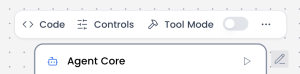
- Code: Defines the core logic of the component. This section contains the Python code that runs when the component is executed, including how inputs are processed and how outputs are generated. Changes made here directly affect the component’s behavior.
- Controls: Defines the configurable parameters of the component. Controls are the fields exposed to the user—such as text inputs, dropdowns, toggles, or sliders—that allow customization without modifying the underlying code.
- Tool Mode: Determines whether the component can be used as a callable tool by an agent or LLM. When enabled, the component exposes its inputs and outputs in a structured format so the agent can invoke it during execution.
- Additional actions: Delete, Duplicate, Copy, or Minimize are available when clicking the “…” icon in the component header.
In the component’s side or footer menu, you will find:

- Response: Defines how the component’s output is returned and formatted. This setting controls what data is exposed to downstream components or to the user, ensuring the response is clear, structured, and usable within the flow.
- Inputs: Specifies the data the component expects to receive from previous components. Inputs define the type, structure, and naming of incoming values used during execution.
- Outputs: Defines the data produced by the component after execution. Outputs can be connected to other components in the flow and are essential for chaining logic across nodes.
Component connections
Components are connected by linking the output of one component to the input of another, defining how data flows through the flow. To create a connection, click and drag from an output port of a component to a compatible input port on another component.
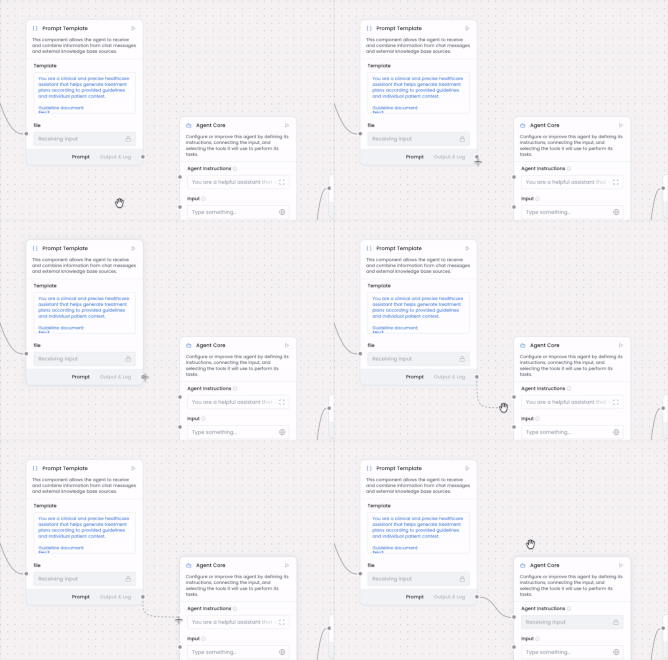
To remove a connection, click the connection line to select it, then press the Delete key on your keyboard.
List of components
The components list provides an overview of all available components in the platform. Each component serves a specific function and can be combined with others to build complete flows. The following section includes an indexed list with direct links and brief explanations to help you understand, configure, and connect each component.
- Agent Core
- Chat Input
- Chat Output
- Text Input
- Text Output
- Knowledge Base – Files
- Embedding Model
- Prompt Template
- Split Text
- Web Search
- RSS Reader
- News Search
- Batch Run
- Parser
- Smart Router
- Type Convert
- Structured Output
- LLM Router
- Python Interpreter
- API Request
- Web Hook
- Listen
- Notify
- Current Date
Agent Core
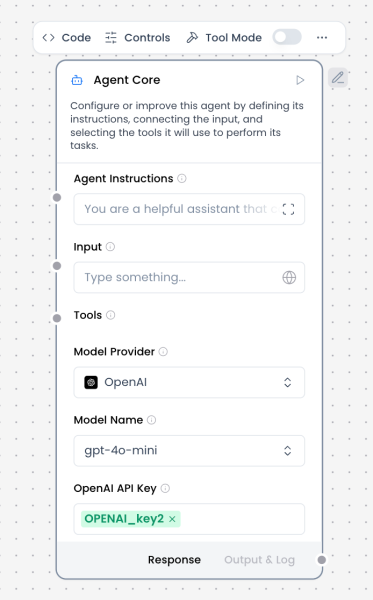
What and how it can be used:
The Agent Core component is the central orchestration unit of an AI agent. It coordinates reasoning, decision-making, and execution by combining user input, system instructions, tools, memory, and language models into a single autonomous workflow.
Unlike a standalone Language Model component, the Agent Core can plan multi-step actions, decide when to call tools, integrate retrieved knowledge, and maintain conversational context. It acts as the “brain” of the agent, determining what to do next rather than simply generating a single response.
The Agent Core receives structured or conversational input, applies the configured agent instructions, selects and invokes tools when necessary, and produces a final response or intermediate outputs that can be routed to other components.
When/how the component should be used:
- Use when building autonomous or semi-autonomous solutions that require reasoning and decision-making
- Use when the agent must select between multiple tools or data sources
- Use when conversation memory, context, or state is required
- Use for multi-step workflows (e.g., search → retrieve → analyze → respond)
- Use instead of a plain Language Model when tool usage, planning, or orchestration is needed
- Ideal for assistants that interact with APIs, databases, knowledge bases, or external systems
Connections with other components:
Inputs / Context Providers
- Chat Input
- Text Input
- Prompt Template
- Message History
- Knowledge Base – Files
- Structured Output
- Parser
Tools (Tool Mode)
- Web Search
- News Search
- RSS Reader
- SQL Database
- API Request
- Python Interpreter
- Calculator
- Directory
- URL
- Current Date
- Mock Data Generator
Outputs
- Chat Output
- Text Output
- Structured Output
- Save File
- Notify
Routing / Control
- Smart Router
- If-Else
- Guardrail
- Human-in-the-loop
Configurable settings:
- Agent Instruction
System-level instructions that define the agent’s role, behavior, constraints, and goals. This is the primary prompt governing agent reasoning. - Input
Incoming message or data from Chat Input, Text Input, or other components. - Model Provider
Selects the LLM provider used by the agent (e.g., OpenAI, Anthropic, Google). - Model Name
Specifies the exact model used for reasoning and generation. - API Key
Authentication key for the selected model provider. - Tools
Connected tool components that the agent may invoke dynamically during execution. - Memory / Message History
Optional integration for retaining conversation context across turns. - Streaming
Enables partial or real-time output streaming. - Temperature / Model Parameters
Controls creativity and response variability.
Control Section:
- Agent Instruction
- Input
- Model Provider
- Model Name
- API Key
- Tools
- Stream
- Temperature
Default values:
- Model Provider = OpenAI
- Model Name = gpt-4o-mini (or platform default)
- Temperature = 0.1
- Stream = on
- Tools = none connected by default
- Memory = disabled unless explicitly connected
Expected default behavior:
- Processes one user request at a time
- Applies Agent Instructions consistently
- Does not call tools unless required by the task
- Produces a single coherent response per turn
- Preserves message roles and conversation structure when connected to Chat Input / Output
- Fails clearly when tools or inputs are misconfigured
Customization and controls:
- Adjust agent behavior through Agent Instruction rather than prompt templates
- Add or remove tools to constrain or expand agent capabilities
- Control determinism and creativity via temperature
- Combine with Guardrails for safety or compliance
- Use Smart Router or If-Else for multi-agent or conditional flows
- Enable Human-in-the-loop for approval-based execution
Chat Input
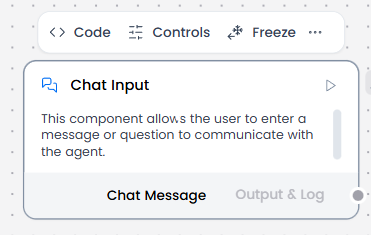
What and how it can be used:
The Chat Input component captures user messages directly from the chat interface in a conversational format. It creates message objects with conversation metadata (sender, timestamp, session ID, roles) and serves as the entry point for interactive, multi-turn conversations with an agent, maintaining conversation context and history throughout the session.
When/how the component should be used:
- Use when you need to capture direct user input from the chat interface
- Use when conversation history and context are required
- Ideal when you need to maintain conversation history and context with metadata
- Connect to Chat Output, Agent Core or any other component that you want to receive user input from the chat interface.
Connections with other components:
- Agent Core
- Text Input
- Chat Output
- API Request
- Directory
- News Search
- RSS Reader
- Web Search
- Language Model
- Batch Run
- LLM Router
- Parser
- Save File
- Smart Function
- Split Text
- Structured Output
- Type Convert
- Listen
- Notify
- Smart Router
- Calculator
- Anonymization
- Directory
- Text Output
- Sql Database
- Guardrail
- Human-in-the-loop
- Bing Search API
- Google Search API
- ChromaDB
- If-Else
Configurable settings:
- Input Text
Control Section:
- Input Text
- Store Messages
- Sender Type
- Sender Name
- Session ID
- Files
Default values:
- Sender Type : User
- Sender Name : User
- Store Messages : on
Desired Behaviour :
- Keep messages in correct order.
- Preserve roles (user/system).
- Create message objects with conversation metadata
Chat Output
What and how it can be used:
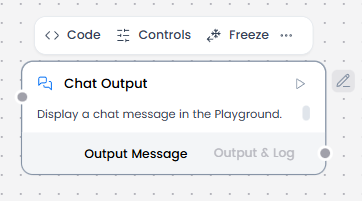
The Chat Output component displays AI agent responses in a conversational chat interface. It renders messages from the agent in real-time, maintaining a visual dialogue between the user and the AI, and can display various content types including text, formatted content, and media. Works with message objects that contain conversation metadata.
When/how the component should be used:
- Use alongside Chat Input to create complete conversational interfaces
- Essential for displaying multi-turn conversation flows where users need to see the full dialogue history
- When Agent Core processes user input and generates a response, it sends that response to Chat Output for display
Connections with other components:
- Agent Core
- Chat Input
- Text Input
- Text Output
- API Request
- Directory
- News Search
- RSS Reader
- SQL Database
- Web Search
- Language Model
- Batch Run
- LLM Router
- Parser
- Save File
- Smart Function
- SplitText
- Structured Output
- Type Convert
- Listen
- Notify
- Smart Router
- Calculator
- Guardrail
- Calculator
- Human-in-the-loop
- Bing Search API
- Google Search API
- ChromaDB
- If-Else
Configurable settings:
- Inputs
Control Section:
- Inputs
- Store Messages
- Sender Type
- Sender Name
- Session ID
- Data Template
- Basic Clean Data
Default values:
- Store Messages : on
- Sender Type : Machine
- Sender Name : AI
- Data Template : {text}
- Basic Clean Data : on
Desired Behaviour:
- Show final agent or LLM response clearly.
- Does not alter content unless specified.
- Display messages with conversation context
Text Input
What and how it can be used:
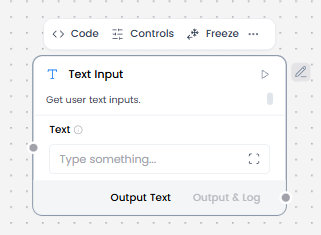
The Text Input component accepts a text string input and then passes it to other components as Message Data (a data object) containing only the provided input text string (i.e. text attribute). It’s designed for receiving processed text, static strings, prompts, or reference data from other components in the workflow.
When/how the component should be used:
- Use for receiving text from other components in the workflow
- Does not interact with users directly
- Best when conversation history is not needed
- Use for static strings, prompts, reference data passed between components
- Feed into Prompt Template, Language Model, or Embedding Model.
Connections with other components:
- Chat Output
- Text Output
- API Request
- Directory
- News Search
- RSS Reader
- SQL Database
- Web Search
- Language Model
- Batch Run
- LLM Router
- Parser
- Save File
- Smart Function
- Split Text
- Structured Output
- Listen
- Notify
- Smart Router
- Chat Input
- Calculator
- Google Search API
- Bing Search API
- Human-in-the-loop
- Guardrail
- Anonymization
- ChromaDB
- If-Else
Configurable settings:
- Text
Control Section:
- Text
Desired Behaviour:
- Send text as-is (plain text strings only)
- No conversation metadata attached
- Does not change formatting.
Text Output
What and how it can be used:
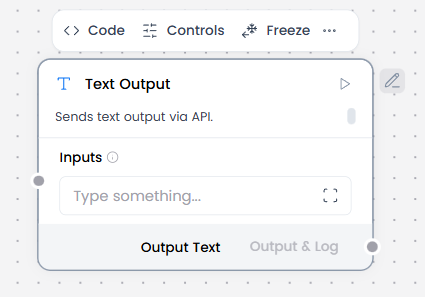
The Text Output component displays text responses in a static format without conversation context. It presents plain text results without message objects or metadata, suitable for one-time query results or processed outputs from component workflows.
When/how the component should be used:
- When Agent Core processes a request and generates a result, it sends that result to Text Output for display
- Use when raw text or structured output is needed without chat semantics or metadata
- When Agent Core processes a one-time request and generates a result, it sends that result to Text Output for display
- Best when only the final output matters, not the interaction history
- Connect output from Language Model, Parser, or Text Input.
Connections with other components:
- Chat Output
- Text Input
- Agent Core
- RSS Reader
- SQL Database
- Batch Run
- Language Model
- API Request
- LLM Router
- Parser
- Save File
- Smart Function
- Split Text
- Structured Output
- Type Convert
- Listen
- Notify
- Smart Router
- Calculator
- Anonymization
- Guardrail
- Human-in-the-loop
- Bing Search API
- Google Search API
- News Search
- Helpers Components
- ChromaDB
- If-Else
Configurable settings:
- Inputs
Control Section:
- Inputs
Desired Behaviour:
- Outputs text exactly as received (plain text only)
- No formatting changes
- No conversation metadata
Knowledge Base – Files
What and how it can be used:
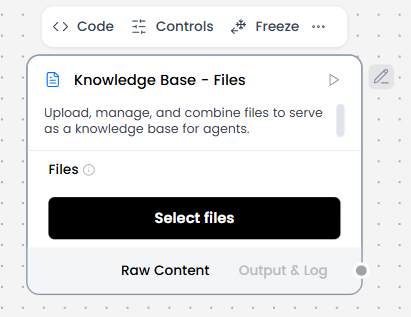
The Knowledge Base – Files component stores and manages documents that the AI agent can search through and retrieve information from. It acts as a repository of context and reference material, enabling the agent to answer questions based on uploaded files and documents using RAG (Retrieval-Augmented Generation).
When/how the component should be used:
- Use for document-based knowledge retrieval
- Use for RAG (Retrieval-Augmented Generation)
- Use for semantic search across documents
- Upload files on the Knowledge Base -Files component to be used or processed by the flow.
Connections with other components:
- Agent Core (provides retrieved context to the agent for processing)
- Chat Input (receives user queries that trigger document searches)
- Text Input
- Chat Output
- Text Output
- API Request
- Directory
- News Search
- RSS Reader
- SQL Database
- Web Search
- Language Model
- Batch Run
- LLM Router
- Parser
- Python Interpreter
- Save File
- Smart Function
- Split Text
- Structured Output
- Type Convert
- Listen
- Notify
- Smart Router
- Calculator
- Guardrail
- Anonymization
- Human-in-the-loop
- Bing Search API
- Google Search API
- ChromaDB
- If-Else
Configurable settings:
- Files (Select files)
Control Section:
- Files
- Delete Server File After Processing
- Ignore Unsupported Extensions
- Processing Concurrency
- Server File Path
- Separator
- Silent Errors
Default values:
- Delete Server File After Processing = on
- Ignore Unsupported Extensions = on
- Processing Concurrency = 1
- Files
Desired Behaviour:
- Reads all supported file types reliably.
- Preserve original file contents and metadata
Embedding Model
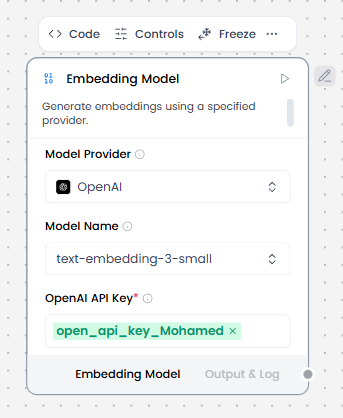
What and how it can be used:
The Embedding Model component converts text into numerical vector representations (embeddings) that capture semantic meaning. These vectors enable similarity searches, document retrieval, and semantic understanding by representing text in a mathematical space where similar meanings are positioned close together.
When/how the component should be used:
- Use when you need to convert text into vectors for similarity search or semantic matching
- Use before vector storage, similarity search, clustering, or retrieval.
- Required for indexing documents in Knowledge Base – Files
- Create a flow, add a Knowledge Base – Files component, and then select a file containing text data, such as a PDF, that you can use to test the flow.
- Add the Embedding Model core component, and then provide a valid OpenAI API key.
- Add a Split Text component to your flow. This component splits text input into smaller chunks to be processed into embeddings.
- Add a vector store component, such as the Chroma DB component, to your flow, and then configure the component to connect to your vector database. This component stores the generated embeddings so they can be used for similarity search.
- Connect the components
- Click Test Agent, and then enter a search query to retrieve text chunks that are most semantically similar to your query.
Connections with other components:
- Tool components (Chroma DB)
Configurable settings:
- Model Provider
- Model Name
- OpenAi Api Key
Default settings:
- Model Provider
- Model Name
- OpenAi Api Key
Control Section:
- Model Provider
- Model Name
- OpenAI API Key
- Chunk Size
- Max Retries
- API Base URL
- Dimensions
- Chunk Size
- Request Timeout
- Max Retries
- Show Progress Bar
- Model Kwargs
Default values:
- Model Provider = OpenAI
- Model Name = text-embedding-3-small
- Chunk Size = 1000
- Max Retries = 3
Desired Behaviour:
- Batch embeddings where possible
- Consistent vector dimensionality
- No semantic modification of text
Prompt Template
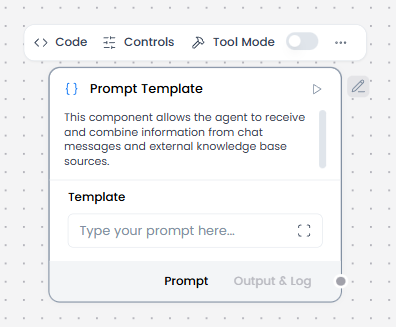
What and how it can be used:
The Prompt Template component creates structured, reusable instruction formats for AI agents. It allows you to define consistent prompting patterns with placeholders for dynamic variables, ensuring the agent receives well-formatted instructions every time while maintaining flexibility for different inputs.
When/how the component should be used:
- When you want to separate prompt logic from the main agent configuration
- Use when you need consistent, structured prompts across multiple requests
- Best for creating reusable prompt patterns with variable inputs
- Ideal for standardizing how information is presented to the agent
- Define the template structure e.g. Summarize the following patient notes: {patient_notes}”
- Connect input sources e.g. Text Input, Text Output, Knowledge Base to ensure dynamic content is inserted into the prompt at runtime.
- Send to Language Model/Agent Core as output of the template becomes the prompt for a Language Model or Chat Output.
- Optionally, you could combine multiple templates for multi-step reasoning (e.g., one template for summarization, another for extraction).
Connections with other components:
- Chat Output
- Text Input
- Text Output
- Agent Core
- API Request
- Directory
- News Search
- RSS Reader
- SQL Database
- Web Search
- Language Model
- Batch Run
- LLM Router
- Parser
- Python Interpreter
- Save File
- Smart Function
- Split Text
- Structured Output
- Type Convert
- Notify
- Listen
- Smart Router
- Calculator
- Anonymization
- Guardrail
- Human-in-the-loop
- Bing Search API
- Google Search API
- ChromaDB
- If-Else
In tool mode:
- Agent Core
- Human-in-the-loop
Configurable settings:
- Template (Add the template)
Default settings:
- Template
Control Section:
- Template
- Tool Placeholder
- Actions in Tool mode
Default values:
- Actions = BUILD_PROMPT
Desired Behaviour:
- Fail clearly if variables are missing
- No hidden logic
Split Text
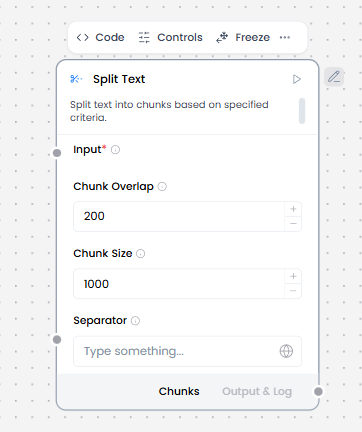
What and how it can be used:
The Split Text component divides large text content into smaller chunks or segments based on specified criteria (separator). This is essential for processing long documents that exceed model token limits or for organizing content into manageable pieces for indexing and retrieval.
When/how the component should be used:
- Use for preparing text for embeddings
- Use for LLM context management
- Use for knowledge base ingestion
- Ideal for preparing documents for indexing in Knowledge Base – Files
- When you need to analyze or process text in smaller, logical units
- Input long text (documents, notes, transcripts).
- Configure chunk size and overlap.
- Output chunks to Embedding Model or Language Model.
- Often placed between Knowledge Base / URL / Directory and Embedding Model.
Connections with other components:
- Chat Output
- Batch Run
- DataFrame Operations
- Parser
- Save File
- Type Convert
- Loop
- Notify
- ChromaDB
Configurable settings:
- Input
- Chunk Overlap
- Chunk Size
- Separator
Default settings:
- Input
- Chunk Overlap
- Chunk Size
- Separator
Control Section:
- Input
- Chunk Overlap
- Chunk Size
- Separator
- Text key
- Keep Separator
Default values:
- Chunk Overlap = 200
- Chunk Size = 1000
- Separator = on
- Text key = text
- Keep Separator = False
Desired Behaviour:
- Stable chunk boundaries
Web Search
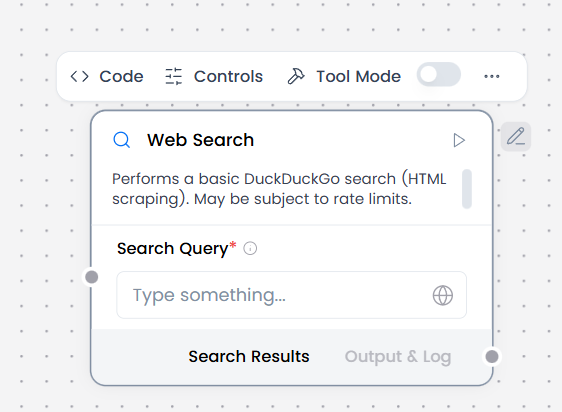
What and how it can be used:
The Web Search component enables AI agents to search the internet in real-time and retrieve current information from web sources. It connects to search engines to find relevant web pages, articles, and data, allowing the agent to access up-to-date information beyond its training data.
When/how the component should be used:
- Use for current information beyond knowledge cutoff
- Use for fact verification and research
- Use for general web lookup.
- Provide a search query as Chat Input or from a Prompt Template.
- Receive structured search results (titles, snippets, URLs) in the output component e.g Chat Output.
- Can be combined with a Language Model to summarize search results or answer questions.
Connections with other components:
- Chat Output
- BatchRun
- DataFrame Operations
- Parser
- Save File
- Split Text
- Type Convert
- Loop
- Notify
- ChromaDB
In tool mode:
- Agent Core
- Human-in-the-loop
Configurable settings:
- Search Query
Default settings:
- Search Query
Control Section:
- Search Query
- Timeout
- In tool mode, there are actions
Default values:
- Timeout = 5
- Actions = PERFORM_SEARCH
Desired Behaviour:
- Limited, relevant results
- Clear attribution
RSS Reader
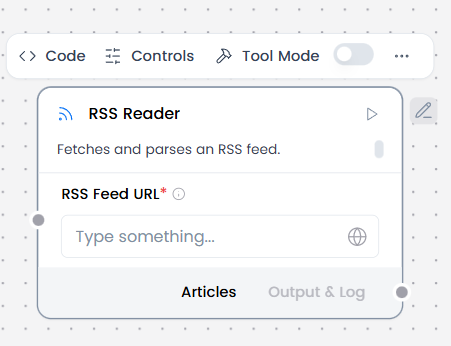
What and how it can be used:
The RSS Reader component fetches and parses content from RSS/Atom feeds, allowing AI agents to access regularly updated content from websites, blogs, news sources, and podcasts.
When/how the component should be used:
- Ideal for aggregating news, blog posts, or updates from multiple sources
- Use for monitoring blogs or feeds.
- Use Chat Input to enter the RSS feed URL(s) from hospital sources.
- Can connect directly to Chat Output to get structured feed items (title, link, date, summary).
- Or Connect to Language Model or Parser to generate insights or structured updates.
Connections with other components:
- Chat Input
- Chat Output
- Batch Run
- DataFrame Operations
- Parser
- Save File
- Split Text
- Type Convert
- Loop
- Notify
- ChromaDB
In tool mode:
- Agent Core
- Human-in-the-loop
Configurable settings:
- RSS Feed URL (Add URL)
Default settings:
- RSS Feed URL
Control Section:
- RSS Feed URL
- Timeout
- In tool mode, there are actions
Default values:
- Timeout = 5
- Actions = READ_RSS
Desired Behaviour:
- Limited, relevant results
- Clear attribution
News Search
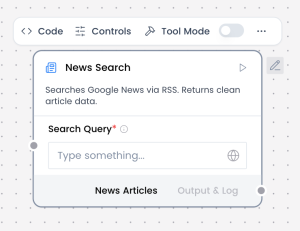
What and how it can be used:
The News Search component searches specifically through news sources and media outlets to find recent articles, breaking news, and journalistic content. It provides access to current events, news stories, and press releases from verified news publishers, offering more focused and timely results than general web search.
When/how the component should be used:
- Use for general web lookup.
- Use for fact verification and research.
- Use for current information beyond knowledge cutoff.
- Provide a search query as Chat Input or from a Prompt Template.
- Receive structured search results (titles, snippets, URLs) in the output component e.g Chat Output.
- Can be combined with a Language Model to summarize search results or answer questions.
Connections with other components:
- Chat Output
- Batch Run
- DataFrame Operations
- Parser
- Save File
- Split Text
- Type Convert
- Loop
- Notify
- ChromaDB
In tool mode:
- Agent Core
- Human-in-the-loop
Configurable settings:
- Search Query (Add query)
Default settings:
- Search Query
Control Section:
- Search Query
- Language (hl)
- Country (gl)
- Country : Language(ceid)
- Topic
- Location (Geo)
- Timeout
- Actions
Default values:
- Country : Language(ceid) = US:en
- Timeout = 5
- Actions = SEARCH_NEWS
Desired Behaviour:
- Limited, relevant results
- Clear attribution
Batch Run
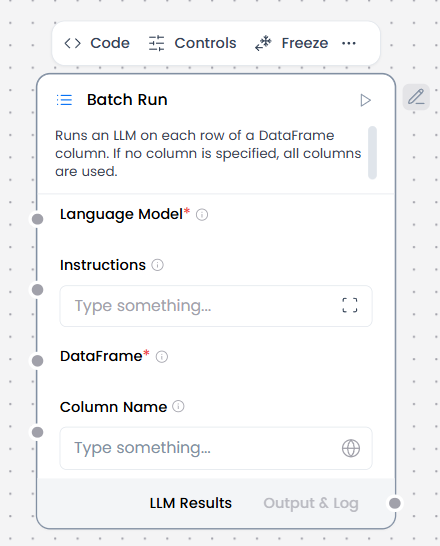
What and how it can be used:
The Batch Run component processes multiple inputs or tasks sequentially or in parallel, allowing the agent to handle bulk operations efficiently. It takes a list of items (texts, queries, files, etc.) and executes the same workflow or operation on each item, collecting all results for consolidated output.
When/how the component should be used:
- When you need to process multiple text entries from a DataFrame (like CSV files)
- For bulk/batch processing where you want to apply the same LLM operation to many inputs
- When processing tabular data where each row needs an LLM response
- For offline processing tasks where you’re working with structured data files
- Connect Language model component to a Batch Run component’s Language model port.
- Connect DataFrame output from another component to the Batch Run component’s DataFrame input. For example, you could connect a Read File component with a CSV file.
- In the Batch Run component’s Column Name field, enter the name of the column in the incoming DataFrame that contains the text to process. For example, if you want to extract text from a name column in a CSV file, enter name in the Column Name field.
- Connect the Batch Run component’s Batch Results output to a Parser component’s DataFrame input.
- Optional: In the Batch Run component’s header menu, click Controls, enable the System Message parameter, click Close, and then enter an instruction for how you want the LLM to process each cell extracted from the file. For example, Create a business card for each doctor.
- In the Parser component’s Template field, enter a template for processing the Batch Run component’s new DataFrame columns (text_input, model_response, and batch_index) e.g. record_number: {batch_index}, name: {text_input}, summary: {model_response}
- Connect Chat Input to the Language Model and Chat Output to the Parser so as to use the chat UI.
Connections with other components:
- ChatOutput
- DataFrame Operations
- Chat Output
- Parser
- Save File
- Type Convert
- Loop
- Notify
- ChromaDB
Configurable settings:
- Column Name (write the columns from csv)
- Instructions ( write instructions)
Default settings:
- Column Name (write the columns from csv/xls)
- Instructions ( write instructions)
Control Section:
- Language Model
- Instructions
- Dataframe
- Column Name
- Output Column Name
- Enable Metadata
Default values:
- Output Column Name = model_response
Desired Behaviour:
- Independent execution per item
- Partial failures surfaced
Parser
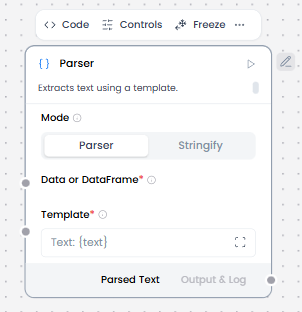
What and how it can be used:
The Parser component extracts, transforms, and structures data from various formats (HTML, JSON, XML, CSV, PDF, etc.) into a usable format for the agent. It converts unstructured or semi-structured data into clean, organized information that can be processed by other components.
When/how the component should be used:
- Used to extract structured data from LLM output.
- For creating formatted text output using templates with variables.
- When converting structured data into natural language summaries.
- Connect Chat Input and Embedding Model to ChromaDB.
- Connect ChromaDB to the Parser.
- Edit the Parser component to set Mode to Parser.
- In the Parser’s Template field, enter a template to parse the raw payload into structured text.
- Connect the Parser component’s Parsed Text output to a Prompt Template which combines parsed retrieved context, user query and system instructions.
- Connect the Prompt Template to Language Model.
- Connect Language Model to Chat Output to display the responses.
Connections with other components:
- ChatOutput
- Text Input
- Text Output
- Agent Core
- API Request
- Directory
- News Search
- RSS Reader
- SQL Database
- Web Search
- Language Model
- Batch Run
- LLM Router
- Python Interpreter
- Save File
- Smart Function
- Split Text
- Structured Output
- Type Convert
- Listen
- Notify
- Smart Router
- Calculator
- Anonymization
- Guardrail
- Human-in-the-loop
- Bing Search API
- Google Search API
- ChromaDB
- If-Else
Configurable settings:
Mode : Parser
- Mode
- Template (Write the template)
- Data or dataframe ( From another component)
Mode : Stringify
- Mode
- Data or dataframe ( From another component)
Default settings:
Mode : Parser
- Mode
- Template (Write the template)
- Data or dataframe ( From another component)
Mode : Stringify
- Mode
- Data or dataframe ( From another component)
Control Section:
Mode : Parser
- Mode
- Template
- Data or dataframe
- Separator
- Clean Data
Mode : Stringify
- Mode
- Data or dataframe
- Separator
- Clean Data
Default values:
Mode : Parser
- Mode = Parser
- Template = Text: {text}
- Clean Data = on
Mode : Stringify
- Mode = Stringify
Desired Behaviour:
Mode : Parser
- Deterministic parsing rules
- Explicit errors, not silent failures
Mode : Stringify
- No data loss
- Stable ordering
- No semantic changes
Smart Router
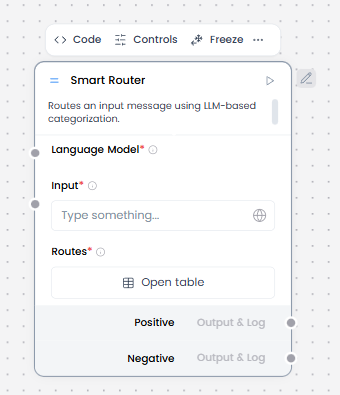
What and how it can be used:
The Smart Router component intelligently directs user requests to the most appropriate agent, workflow, or processing path based on the content, intent, or context of the input. It analyzes incoming messages and automatically routes them to specialized agents or sub-workflows, enabling efficient handling of diverse queries within a single system.
When/how the component should be used:
- When you need LLM-based routing.
- When you have multiple flow paths.
- Input data (from Chat Input or Parser).
- Connect the Language Model component to the Smart Router component.
- Define routing rules based on fields, values, or ranges.
- Connect each route to a dedicated downstream path.
- Always include a default or fallback route.
Connections with other components:
- Chat Output
- Text Input
- Text Output
- Agent Core
- API Request
- Directory
- News Search
- RSS Reader
- SQL Database
- Web Search
- Language Model
- Batch Run
- LLM Router
- Parser
- Python Interpreter
- Save File
- Smart Function
- Split Text
- Structured Output
- Type Convert
- Listen
- Notify
- Calculator
- Anonymization
- Guardrail
- Human-in-the-loop
- Bing Search API
- Google Search API
- ChromaDB
- If-Else
Configurable settings:
- Language Model ( From language model component)
- Input ( write input or get value from another component)
- Routes
Default settings:
- Language Model ( From language model component)
- Input ( write input or get value from another component)
- Routes
Control Section:
- Language Model
- Input
- Routes
- Override Output
- Include Else Output
- Additional Instructions
Desired Behaviour:
- Deterministic routing
- No hidden learning
Type Convert
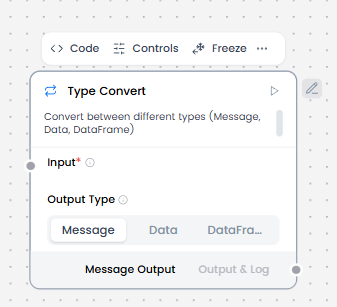
What and how it can be used:
The Type Convert component transforms data from one type or format to another, ensuring compatibility between different components and proper data handling throughout the workflow. It converts values like strings to numbers, dates to timestamps, JSON to text, arrays to strings, and vice versa.
When/how the component should be used:
- If two components have incompatible data types, you can use a processing component like the Type Convert component to convert the data between components
- When transforming data from one of these formats to another
- When you need to pass data between components that expect different data types
Connections with other components:
- Chat Output
- Text Input
- Text Output
- Agent Core
- API Request
- Directory
- News Search
- RSS Reader
- SQL Database
- Web Search
- Language Model
- Batch Run
- LLM Router
- Parser
- Python Interpreter
- Save File
- Smart Function
- Split Text
- Structured Output
- Listen
- Notify
- Smart Router
- Calculator
- Anonymization
- Guardrail
- Human-in-the-loop
- Bing Search API
- Google Search API
- ChromaDB
- If-Else
Configurable settings:
- Input (From another component)
Default settings:
- Input (From another component)
Control Section:
- Input
- Auto Parse
- Output Type
Default values:
- Output Type = Message
Desired Behaviour:
- Explicit, loss-aware conversion
Structured Output
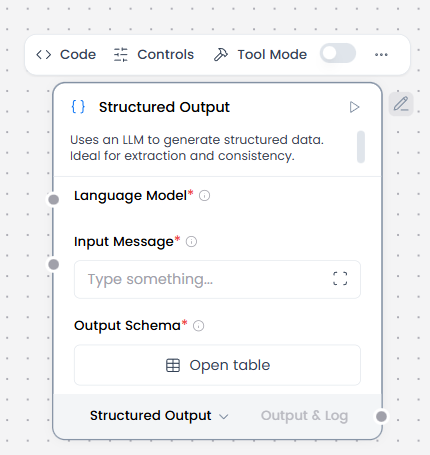
What and how it can be used:
The Structured Output component ensures that AI agent responses follow a specific, predefined format or schema (JSON, XML, tables, forms, etc.). It constrains the model’s output to match exact data structures, field types, and validation rules, making responses consistent, parseable, and ready for automated processing.
When/how the component should be used:
- Use when output must match a schema.
- Ideal for extracting specific data fields from unstructured text
- Provide an input message, which is the source material from which you want to extract structured data. This can come from practically any component, but it is typically a Chat Input, Knowledge Base – Files, or other component that provides some unstructured or semi-structured input.
- Define Format Instructions and an Output Schema to specify the data to extract from the source material and how to structure it in the final Data or DataFrame output
- Attach a language model component that is set to emit LanguageModel output.
- Optional: Typically, the structured output is passed to downstream components that use the extracted data for other processes, such as the Parser or Data Operations components
Connections with other components:
- Chat Output
- Batch Run
- Data Operations
- DataFrame Operations
- Parser
- Save File
- Smart Function
- Split Text
- Type Convert
- Loop
- Notify
- Chroma
In tool mode:
- Agent Core
- Human-in-the-loop
Configurable settings:
- Language Model ( From language model component)
- Input Message (From another component)
- Output Schema ( Add the required information to the table)
Default settings:
- Language Model ( From language model component)
- Input Message (From another component)
- Output Schema ( Add the required information to the table)
Control Section:
- Language Model
- Input Message
- Format Instructions
- Schema Name
- Output Schema
- Actions ( In tool mode)
Default values:
- Format Instructions = You are an AI that extracts structured JSON objects from unstructured text. Use a predefined schema with expected types (str, int, float, bool, dict). Extract ALL relevant instances that match the schema – if multiple patterns exist, capture them all. Fill missing or ambiguous values with defaults: null for missing values. Remove exact duplicates but keep variations that have different field values. Always return valid JSON in the expected format, never throw errors. If multiple objects can be extracted, return them all in the structured format.
- Actions ( In tool mode) = BUILD_STRUCTURED_OUTPUT, BUILD_STRUCTURED_DATAFRAME
Desired Behaviour:
- Best-effort schema compliance
- Clear failure on invalid input
LLM Router
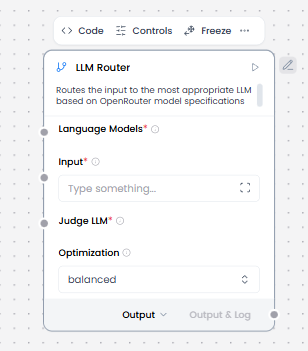
What and how it can be used:
The LLM Router component intelligently selects and routes requests to the most appropriate language model based on query characteristics, complexity, cost considerations, or performance requirements. It dynamically chooses between different LLMs (GPT-4, Claude, Gemini, etc.) or model tiers to optimize for speed, cost, quality, or specialized capabilities.
When/how the component should be used:
- Use when multiple models are available and selection must be dynamic.
- Ideal for balancing cost and performance by routing simple queries to cheaper models.
- Essential for cost optimization in high-volume applications.
- Define a pool of available LLMs with known characteristics.
- Configure routing rules (e.g. task type, priority, cost tier).
- Route the prompt to exactly one selected model.
- Provide a fallback model in case the preferred model fails.
Connections with other components:
- Chat Output
- Text Input
- Text Output
- Agent Core
- API Request
- Directory
- News Search
- RSS Reader
- SQL Database
- Web Search
- Language Model
- LLM Router
- Batch Run
- Data Operations
- Parser
- Python Interpreter
- Save File
- Smart Function
- Split Text
- Structured Output
- Type Convert
- Listen
- Notify
- Smart Router
- Calculator
- Anonymization
- Guardrail
- Human-in-the-loop
- Bing Search API
- Google Search API
- ChromaDB
- If-Else
Configurable settings:
- Language Model ( from Language Model component)
- Input ( From another component or write the input)
- Judge LLM ( From Language Model component)
- Optimization (Choose option from list select)
Default settings:
- Language Model ( from Language Model component)
- Input ( From another component or write the input)
- Judge LLM ( From Language Model component)
- Optimization (Choose option from list select)
Control Section:
- Language Models
- Input
- Judge LLM
- Optimization
- Use OpenRouter Specs
- API Timeout
- Fallback to First Model
Default values:
- Optimization = Balanced
- Use OpenRouter Specs = on
- API Timeout = 10
- Fallback to First Model = on
Desired Behaviour:
- Deterministic routing
- Graceful fallback on failure
Python Interpreter
What and how it can be used:
The Python Interpreter component executes Python code dynamically within the workflow, allowing for complex calculations, data processing, API calls, file operations, and integration with Python libraries. It provides a sandboxed environment to run Python scripts with input variables and return results to the workflow.
When/how the component should be used:
- Use when you need to execute Python code for complex logic or calculations
- Use for custom logic or calculations.
- Best for advanced data processing, statistical analysis, or machine learning operations
- Essential for integrating Python-specific libraries and tools into workflows
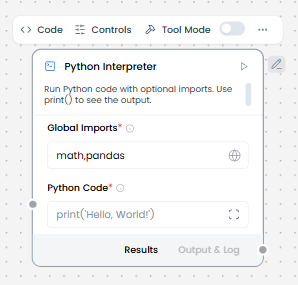
- To use this component in a flow, in the Global Imports field, add the packages you want to import as a comma-separated list, such as math,pandas. At least one import is required.
- In the Python Code field, enter the Python code you want to execute. Use print() to see the output.
- Optional: Enable Tool Mode, and then connect the Python Interpreter component to an Agent component as a tool. For example, connect a Python Interpreter component and a Calculator component as tools for an Agent component, and then test how it chooses different tools to solve math problems.
Connections with other components:
- ChatOutput
- Data Operations
- Parser
- Save File
- Smart Function
- Split Text
- Type Convert
- Notify
- ChromaDB
In tool mode:
- Agent Core
- Human-in-the-loop
Configurable settings:
- Global Imports ( write the imports)
- Python Code (write the code python)
Default settings:
- Global Imports ( write the imports)
- Python Code (write the code python)
Control Section:
- Global Imports
- Python Code
- Actions ( In tool mode)
Default values:
- Global Imports = math,pandas
- Python Code = print(‘Hello, World!’)
- Actions ( In tool mode) = RUN_PYTHON_REPL
Desired Behaviour:
- No network access unless enabled
- Time and memory bounded
API Request
What and how it can be used:
The API Request component makes HTTP requests to external APIs and services, enabling workflows to interact with third-party systems. It sends HTTP requests (GET, POST, PUT, DELETE, PATCH) with configurable headers, body, query parameters, and authentication, then receives and processes API responses. This component bridges Langflow workflows with external REST APIs, webhooks, and web services for data exchange and integration.
When/how the component should be used:
- Use for calling external APIs and web services
- Use when you need HTTP communication
- Use for data synchronization
- Configure HTTP method (GET/POST/etc.) and endpoint.
- Pass parameters or payload from Text Input, Parser, or Prompt Template.
- Surface response and errors directly to downstream components.
- Optionally parse or structure the response using Parser or Structured Output.
Connections with other components:
- ChatOutput
- Data Operations
- Parser
- Save File
- Smart Function
- Split Text
- Type Convert
- Notify
- ChromaDB
In tool mode:
- Agent Core
- Human-in-the-loop
Configurable settings:
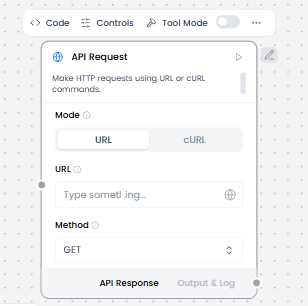
- Mode (Choose the mode)
Mode = URL
- URL (Write the url)
- Method ( Choose the method)
Mode = cURL
- cURL (Write the url)
Default settings:
- Mode (Choose the mode)
Mode = URL
- URL (Write the url)
- Method ( Choose the method)
Mode = cURL
- cURL (Write the url)
Control Section:
Mode = URL
- Mode
- URL
- cURL
- Method
- Query Parameters
- Body
- Headers
- Timeout
- Follow Redirects
- Save to File
- Include HTTPx Metadata
- Actions in Tool mode
Mode = cURL
- Mode
- URL
- cURL
- Method
- Query Parameters
- Body
- Headers
- Timeout
- Follow Redirects
- Save to File
- Include HTTPx Metadata
- Actions in Tool mode
Default values:
Mode = URL
- Method = GET
- Mode = URL
- Timeout = 30
- Follow Redirects = on
- Actions = MAKE_API_REQUEST
Mode = cURL
- Method = GET
- Mode = cURL
- Timeout = 30
- Follow Redirects = on
- Actions = MAKE_API_REQUEST
Desired Behaviour:
- Send request and return response clearly
- Show errors instead of hiding them.
Web Hook
What and how it can be used:
The Webhook component enables workflows to receive real-time HTTP requests from external services and systems. It acts as an endpoint that listens for incoming data, allowing third-party applications to trigger workflows, send notifications, or push data automatically when specific events occur. Webhooks provide event-driven integration without requiring constant polling.
When/how the component should be used:
- Perfect for building reactive systems that respond to external triggers instantly.
- Use when external services need to notify your workflow of events in real-time.
- To use Webhook to trigger flows use the following steps:
- Add a Webhook component and a Parser component to your flow.
- These two components are commonly paired together because the Parser component extracts relevant data from the raw payload received by the Webhook component.
- Connect the Webhook component’s Data output to the Parser component’s Data input.
- In the Parser component’s Template field, enter a template to parse the raw payload into structured text.
- In the template, use variables for payload keys in the same way you would define variables in a Prompt Template component. E.g. assume that you expect your Webhook component to receive JSON data, then, you can use curly braces to reference the JSON keys anywhere in your parser template.
- Connect the Parser component’s Parsed Text output to the next logical component in your flow, such as a Chat Input component.
- If you want to test only the Webhook and Parser components, you can connect the Parsed Text output directly to a Chat Output component’s Text input. Then, you can see the parsed data in the Playground after you run the flow.
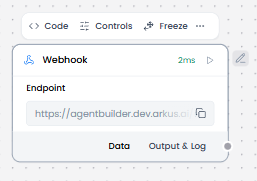
- From the Webhook component’s Endpoint field, copy the API endpoint that you will use to send data to the Webhook component and trigger the flow.
- Send a POST request with data to the flow’s webhook endpoint to trigger the flow.
Connections with other components:
- Chat Output
- Data Operations
- Parser
- Save File
- Smart Function
- Split Text
- Type Convert
- Notify
- ChromaDB
Configurable settings:
- Endpoint ( Write the endpoint url)
Default settings:
- Endpoint ( Write the endpoint url)
Control Section:
- Payload
- cURL
- Endpoint
Default values:
- cURL = curl -X POST \
“https://agentbuilder.dev.arkus.ai/api/v1/webhook/7959348e-9ff6-4efe-9e20-820ca5e2dc1a” \
-H ‘Content-Type: application/json’ \
-d ‘{“any”: “data”}’ - Endpoint = https://agentbuilder.dev.arkus.ai/api/v1/webhook/7959348e-9ff6-4efe-9e20-820ca5e2dc1a
Desired Behaviour:
- Handle incoming requests.
- Process each request once.
Listen
What and how it can be used:
The Listen component waits for and receives notifications from other parts of the workflow. It works specifically with the Notify component to enable asynchronous communication between different workflow segments or processes. When a Notify component sends a notification, the Listen component captures it and triggers the next steps in the workflow, enabling event-driven architectures and decoupled workflow execution.
When/how the component should be used:
- Use when you need to wait for an event or notification from another workflow component.
- The Listen component is used when you need to receive notifications from a Notify component.
- When building flows that require state-based triggering between different parts of the flow.
- The Notify and Listen components must be used together as a pair.
- The Notify component sends notification data.
- The Listen component receives that notification data.
- The received data can then be passed to other components like If-Else.
Connections with other components:
- Chat Output
- Data Operations
- Parser
- Save File
- Smart Function
- Split Text
- Type Converter
- Notify
- ChromaDB
Configurable settings:
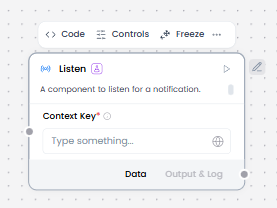
- Context key ( From another component or Write something)
Default settings:
- Context key ( From another component or Write something)
Control Section:
- Context key
Desired Behaviour:
- Receive notifications and events.
Notify
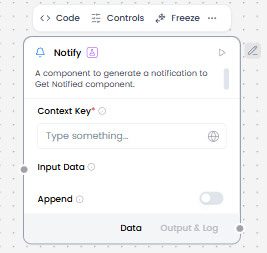
What and how it can be used:
The Notify component sends notifications or messages to other parts of the workflow, enabling asynchronous communication and event-driven architectures. It works specifically with the Listen component to trigger downstream processes. When Notify sends a notification to a specific channel or topic, any Listen components subscribed to that channel receive the notification and can execute their workflows accordingly.
When/how the component should be used:
- Perfect for broadcasting events to multiple listeners simultaneously.
- Ideal for implementing event-driven patterns where one process notifies others.
- The resulting notification is sent to the Listen component. • The notification data can then be passed to other components in the flow, such as the If-Else component.
- The Notify and Listen components are used together.
Connections with other components:
- Chat Output
- Data Operations
- Parser
- Save File
- Smart Function
- Split Text
- Type Convert
- ChromaDB
Configurable settings:
- Context key ( From another component or Write something)
- Input Data ( From another component)
- Append ( choose on or off )
Default settings:
- Context key ( From another component or Write something)
- Input Data ( From another component)
- Append ( choose on or off )
Control Section:
- Context key
- Input Data
- Append
Desired Behaviour:
- Send notifications or events outward.
Current Date
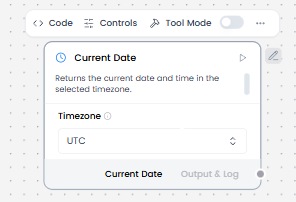
What and how it can be used:
The Current Date component provides the current date and time information to workflows. It generates timestamps, calculates date ranges, formats dates in various formats, and enables time-based logic in workflows. This component supplies real-time temporal data that can be used for scheduling, logging, filtering, date calculations, and time-sensitive operations.
When/how the component should be used:
- Use when you need the current date/time for timestamps or logging.
- Ideal for implementing event-driven patterns where one process notifies others.
- No input is required.
- Connect output to downstream components like Text Output, Structured Output, or Prompt Template.
Connections with other components:
- Chat Output
- Text Input
- Text Output
- Agent Core
- API Request
- Directory
- News Search
- RSS Reader
- SQL Database
- Web Search
- Language Model
- Batch Run
- LLM Router
- Parser
- Python Interpreter
- Save File
- Smart Function
- Split Text
- Structured Output
- Type Convert
- Listen
- Notify
- Smart Router
- Calculator
- Anonymization
- Guardrail
- Human-in-the-loop
- Bing Search API
- Google Search API
- ChromaDB
- If-Else
In tool mode:
- Agent Core
- Human-in-the-loop
Configurable settings:
- Timezone (Choose an option from list select )
Default settings:
- Timezone (Choose an option from list select )
Control Section:
- Timezone
- Actions in tool mode
Default values:
- Timezone = UTC
In tool mode:
- Actions = GET_CURRENT_DATE
Desired Behaviour:
- Return current date and time in the selected timezone.
SQL Database
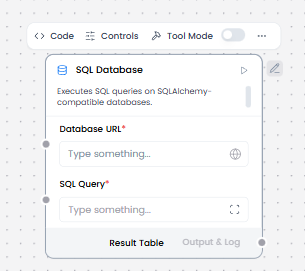
What and how it can be used:
The SQL Database component enables workflows to connect to, query, and manipulate data in relational databases using SQL (Structured Query Language). It provides read and write access to database tables, supports complex queries with joins and aggregations, executes stored procedures, and manages transactions. This component acts as the bridge between AI workflows and structured data storage systems.
When/how the component should be used:
- Use when you need to store, retrieve, or update structured data in a database.
- Best for complex data queries involving relationships and aggregations.
- When an Agent needs to access or store information in a database.
- Use your own sample database or create a test database.
- Add an SQL Database component to your flow.
- In the Database URL field, add the connection string for your database, such as sqlite:///test.db.
- You can enter an SQL query in the SQL Query field or use the port to pass a query from another component, such as a Chat Input component.
- To make this component more dynamic in an agentic context, use an Agent Core component to transform natural language input to SQL queries, as explained in the following steps.
- Click the SQL Database component to expose the component’s header menu, and then enable Tool Mode.
- In Tool Mode, no query is set in the SQL Database component because the agent will generate and send one if it determines that the tool is required to complete the user’s request.
- Add an Agent Core component to your flow, and then enter your OpenAI API key.If you want to use a different model, edit the Model Provider, Model Name, and API Key fields accordingly.
- Connect the SQL Database component’s Toolset output to the Agent component’s Tools input.
- Connect Chat Output to the Agent Core to receive the responses.
Connections with other components:
- Chat Output
- Batch Run
- DataFrame Operations
- Parser
- Save File
- Split Text
- Type Convert
- Loop
- Notify
- ChromaDB
In tool mode:
- Agent Core
- Human-in-the-loop
Configurable settings:
- Database URL ( Write the url )
- SQL Query ( Write the sql query )
Default settings:
- Database URL ( Write the url )
- SQL Query ( Write the sql query )
Control Section:
- Database URL
- SQL Query
- Include Columns
- Add Error
- Actions in tool mode
Default values:
- Include Columns = on
In tool mode:
- Actions = RUN_SQL_QUERY
Desired Behaviour:
- Run queries.
- Default to read-only.
URL
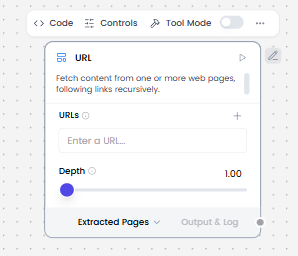
What and how it can be used:
The URL component fetches content from one or more web pages, following links recursively. It acts as a web scraper that can crawl websites, download page content, extract data, and navigate through multiple pages by following hyperlinks. This component enables automated web content retrieval and site crawling within workflows.
When/how the component should be used:
- Use when you need to fetch and extract content from one or more URLs, process it and return it in various formats.
- Ideal for web scraping and data extraction from websites.
- Use Chat Input to input a valid URL pointing to the desired content.
- The component fetches and extracts the content.
- Pass the output to Split Text for chunking if the content is long.
- Send chunks to the Embedding Model or Language Model for processing.
Connections with other components:
- Chat Output
- Text Input
- Agent Core
- API Request
- Directory
- News Search
- RSS Reader
- SQL Database
- Web Search
- Language Model
- If-Else
- Batch Run
- DataFrame Operations
- LLM Router
- Parser
- Python Interpreter
- Save File
- Smart Function
- Split Text
- Structured Output
- Type Convert
- Listen
- Loop
- Notify
- Smart Router
- Calculator
- Anonymization
- Guardrail
- Human-in-the-loop
- Bing Search API
- ChromaDB
In tool mode:
- Agent Core
- Human-in-the-loop
Configurable settings:
- URLs ( Write the URLs )
- Depth
Default settings:
- URLs ( Write the URLs )
- Depth
Control Section:
- URLs
- Depth
- Prevent Outside
- Use Async
- Output Format
- Timeout
- Headers
- Filter Text/HTML
- Continue on Failure
- Check Response Status
- Autoset Encoding
- Actions in tool mode
Default values:
- Depth = 1.00
- Prevent Outside = on
- Use Async = on
- Output Format = Text
- Timeout = 30
- Filter Text/HTML = on
- Continue on Failure = on
- Autoset Encoding = on
In tool mode:
- Actions = FETCH_CONTENT
Desired Behaviour:
- Load content.
- Clearly show the source.
Language Model
What and how it can be used:
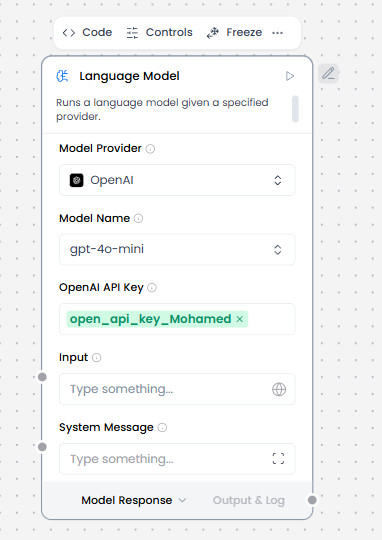
The Language Model component provides access to Large Language Models (LLMs) for natural language processing tasks. It sends prompts to AI models like OpenAI, Anthropic, Google and receives generated text responses. This component enables text generation, completion, question answering, summarization, translation, code generation, and other AI-powered language tasks within workflows.
When/how the component should be used:
- Use for single prompt → single response tasks.
- Use when stateless execution is sufficient (no memory or tool calls).
- Ideal for text generation, summarization, extraction, or classification.
- Use for simple reasoning or content creation without multi-step workflows.
- Add the Language Model core component to your flow, and then enter your OpenAI API key.
- In the component’s header menu, click Controls, enable the System Message parameter, and then click Close.
- Add a Prompt Template component to your flow.
- In the Template field, enter some instructions for the LLM, such as You are an expert in geography who is tutoring high school students.
- Connect the Prompt Template component’s output to the Language Model component’s System Message input.
- Add Chat Input and Chat Output components to your flow. These components are required for direct chat interaction with an LLM.
- Connect the Chat Input component to the Language Model component’s Input, and then connect the Language Model component’s Message output to the Chat Output component.
Connections with other components:
- Chat Output
- Chat Input
- Text Output
- Text Input
- Agent Core
- API Request
- Directory
- News Search
- RSS Reader
- SQL Database
- Web Search
- Batch Run
- LLM Router
- Parser
- Python Interpreter
- Save File
- Smart Function
- Split Text
- Structured Output
- Type Convert
- Listen
- Notify
- Smart Router
- Calculator
- Anonymization
- Guardrail
- Human-in-the-loop
- Bing Search API
- ChromaDB
- If-Else
Configurable settings:
- Model provider ( Choose the model provider)
- Model Name ( Write the model name)
- Input
- OpenAI API Key ( Write the OpenAI API Key )
- System Message
Default settings:
- Model provider ( Choose the model provider)
- Model Name ( Write the model name)
- Input
- OpenAI API Key ( Write the OpenAI API Key )
- System Message
Control Section:
Model provider = OpenAI
- Model Provider
- Model Name
- OpenAI API Key
- Input
- System Message
- Stream
- Temperature
Default values:
- Model Provider = OpenAI
- Model Name = gpt-4o-mini
- Temperature = 0.10
Model provider = Google
- Model Provider
- Model Name
- OpenAI API Key
- Input
- System Message
- Stream
- Temperature
Default values:
- Model Provider = Google
- Model Name = gemini-1.5-pro
- Temperature = 0.10
Model provider = Anthropic
- Model Provider
- Model Name
- OpenAI API Key
- Input
- System Message
- Stream
- Temperature
Default values:
- Model Provider = Anthropic
- Model Name = claude-opus-4-20250514
- Temperature = 0.10
Desired Behaviour:
- Generate one response per request.
Save File
What and how it can be used:
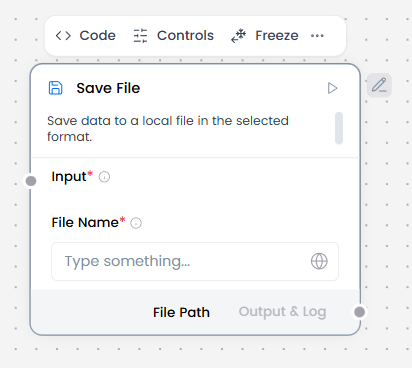
The Save File component saves data to a local file in the selected format. If no file format is selected, the default format will be used. This component writes workflow data, outputs, or generated content directly to the local file system in various formats, creating persistent storage of workflow results.
When/how the component should be used:
- Use when you need to save workflow data or outputs to a local file.
- Best for creating downloadable files or storing data locally.
- Connect DataFrame, Data, or Message output from another component to the Save File component’s Input port.
- In File Name, enter a file name and an optional path.
- In the component’s header menu, click Controls, select the desired file format, and then click Close.
- The available File Format options depend on the input data type.
- To test the Save File component, click Run component, and then click Output and Log output to get the filepath where the file was saved.
Connections with other components:
- Chat Output
- Text Input
- Text Output
- Agent Core
- API Request
- Directory
- News Search
- RSS Reader
- SQL Database
- Web Search
- Language Model
- Batch Run
- LLM Router
- Parser
- Python Interpreter
- Smart Function
- Split Text
- Structured Output
- Type Convert
- Listen
- Notify
- Smart Router
- Calculator
- Anonymization
- Guardrail
- Human-in-the-loop
- Bing Search API
- Google Search API
- ChromaDB
- If-Else
Configurable settings:
- Input ( From another component )
- File Name ( Write the file name )
Default settings:
- Input ( From another component )
- File Name ( Write the file name )
Control Section:
- Input
- File Name
- File Format
Desired Behaviour:
- Save data safely.
Loop
What and how it can be used:
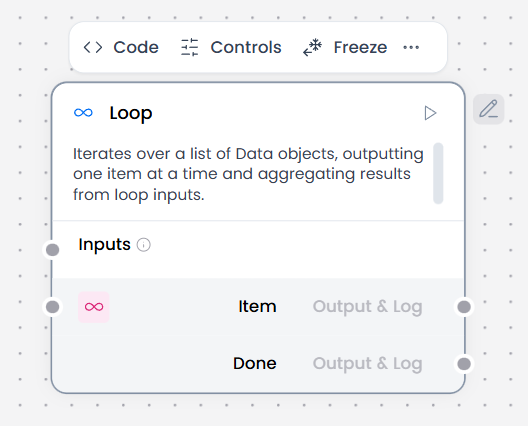
The Loop component iterates over a list of Data objects, outputting one item at a time and aggregating results from loop inputs. It processes each item in a collection sequentially or in parallel, executes workflow steps for each item, and collects the results into an aggregated output.
When/how the component should be used:
- When you need to iterate over a list of data items.
- When processing CSV files row by row.
- When you need to process each item in a DataFrame individually.
- When you want to aggregate results after processing all items.
- Input a list of Data or DataFrame objects.
- Each item is extracted and passed to the Item output port.
- Connect one or more components to the Item port to process each item.
- The Loop component iterates over a list of input by passing individual items to other components attached at the Item output port until there are no items left to process. • Then, the Loop component passes the aggregated result of all looping to the component connected to the Done port.
Connections with other components:
- Chat Output
- Batch Run
- Data Operations
- DataFrame Operations
- Parser
- Save File
- Smart Function
- Split Text
- Type Convert
- Notify
- ChromaDB
Configurable settings:
- Inputs
Default settings:
- Inputs
Control Section:
- Inputs
Desired Behaviour:
- Executes repeatedly up to a limit.
- Always exit safely.
If-Else
What and how it can be used:
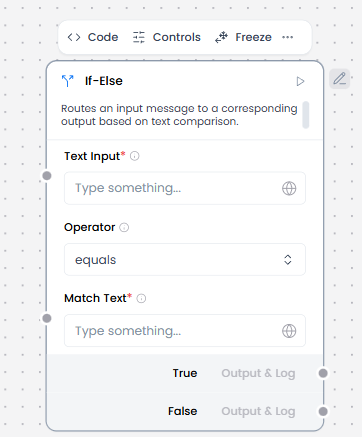
The If-Else component routes an input message to a corresponding output based on text comparison. It evaluates the input text against defined conditions and directs the flow to the matching output path. This component enables text-based conditional routing in workflows.
When/how the component should be used:
- Use when you need to route messages based on text content.
- Ideal for directing user messages to different handlers based on keywords.
- Add an If-Else component to your flow, and then configure it as follows:
- Text Input: Connect the Text Input port to a Chat Input component or another Message input.
- Match Text: Enter .*(urgent|warning|caution).* so the component looks for these values in incoming input. The regex match is case sensitive, so if you need to look for all permutations of warning, enter warning|Warning|WARNING.
- Operator: Select regex.
- Case True: In the component’s header menu, click Controls, enable the Case True parameter, click Close, and then enter New Message Detected in the field.
- The Case True message is sent from the True output port when the match condition evaluates to true.
- No message is set for Case False so the component doesn’t emit a message when the condition evaluates to false.
- Depending on what you want to happen when the outcome is True, add components to your flow to execute that logic e.g Language Model, Prompt Template & Chat Output.
- Repeat the same process with another set of Language Model, Prompt Template, and Chat Output components for the False outcome.
Connections with other components:
- Chat Output
- Text Input
- Text Output
- Agent Core
- API Request
- Directory
- News Search
- RSS Reader
- SQL Database
- Web Search
- Language Model
- Batch Run
- LLM Router
- Parser
- Python Interpreter
- Save File
- Smart Function
- Split Text
- Structured Output
- Type Convert
- Listen
- Notify
- Smart Router
- Calculator
- Anonymization
- Guardrail
- Human-in-the-loop
- Bing Search API
- Google Search API
- ChromaDB
Configurable settings:
- Text Input ( Write the text input or from another component )
- Operator ( Choose the operator)
- Match Text ( Write the match text )
Default settings:
- Text Input ( Write the text input or from another component )
- Operator ( Choose the operator)
- Match Text ( Write the match text )
Control Section:
- Text Input
- Operator
- Match Text
- Case Sensitive
- Case True
- Case False
- Max Iterations
- Default Route
Default values:
- Operator = equals
- Case Sensitive = on
- Max Iterations = 10
- Default Route = false_result
Desired Behaviour:
- Only one branch runs.
- Conditions must be true/false.
Calculator
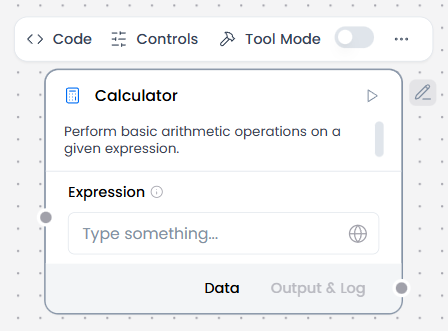
What and how it can be used:
The Calculator component performs basic arithmetic operations on a given expression. It evaluates mathematical expressions containing numbers and arithmetic operators (addition, subtraction, multiplication, division) and returns the calculated result.
When/how the component should be used:
- Perfect for evaluating user-provided mathematical expressions.
- Use when you need to evaluate arithmetic expressions in workflows.
- Configure the calculation formula or expression.
- Output the computed result to downstream components (e.g., Chat Output, Agent Core, Data Operations).
- Can be used as a tool for the agent by setting the Calculator component to tool mode and connecting it to the Agent Core component.
Connections with other components:
- ChatOutput
- Data Operations
- Parser
- Save File
- Smart Function
- Split Text
- Type Convert
- Notify
- ChromaDB
In tool mode:
- Agent Core
- Human-in-the-loop
Configurable settings:
- Expression ( Write the expression)
Default settings:
- Expression ( Write the expression)
Control Section:
- Expression
- Actions in tool mode
Default values:
- Actions = EVALUATE_EXPRESSION
Desired Behaviour:
- Compute exact results.
Data Operations
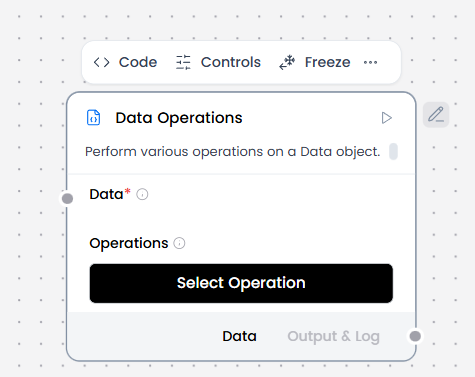
Data operations = default
What and how it can be used:
The Data Operations component performs various operations on a Data object. It manipulates, transforms, and processes data objects through different operations such as filtering, sorting, extracting fields, merging, grouping, and other data manipulations.
When/how the component should be used:
- Use when you need to perform operations on a data object.
- Ideal for transforming, filtering, or restructuring data
- Essential for preparing data for further processing.
- This example shows how to use Data Operations component in a flow using data from a webhook payload.
- Create a flow with a Webhook component and a Data Operations component, and then connect the Webhook component’s output to the Data Operations component’s Data input.
- In the Operations field, select the operation you want to perform on the incoming Data. For this example, select the Select Keys operation.
- Connect the Data Operations component’s output to a Chat Output component.
Connections with other components:
- ChatOutput
- Parser
- Save File
- Smart Function
- Split Text
- Type Convert
- Notify
- ChromaDB
Configurable settings:
- Data ( From another components )
- Operations ( Select operations )
Default settings:
- Data ( From another components )
- Operations ( Select operations )
Control Section:
- Data
- Operations
Desired Behaviour:
- Perform operations consistently.
Data operations = Select Keys
What and how it can be used:
The Select Keys operation extracts selected keys from a Data object. It allows you to pick specific properties or fields from an object or array of objects, returning only the specified keys and their values while discarding the rest.
When/how the component should be used:
- Use when you need to extract specific fields from a data object
- Use to keep only required fields.
- Use to reduce payload size and complexity.
Connections with other components:
- ChatOutput
- Parser
- Save File
- Smart Function
- Split Text
- Type Convert
- Notify
- ChromaDB
Configurable settings:
- Data ( From another components )
- Operations ( Select operations )
- Select keys
Default settings:
- Data ( From another components )
- Operations ( Select operations )
- Select keys
Control Section:
- Data
- Operations
- Select keys
Default values:
- Operations = Select keys
Desired Behaviour:
- Drop unspecified fields.
- Keep only the selected field values.
Data operations = Literal Eval
What and how it can be used:
The Literal Eval operation evaluates string values as Python literals. It safely converts string representations of Python data structures (lists, numbers, booleans, None) into their actual Python object equivalents.
When/how the component should be used:
- Use when you need to convert string representations to actual data structures
- Use when structured data is encoded as text and must be converted into native types.
- Ideal for parsing configuration strings or user input that contains data structures
- Essential for processing serialized data in string format
Connections with other components:
- ChatOutput
- Parser
- Save File
- Smart Function
- Split Text
- Type Convert
- Notify
- ChromaDB
Configurable settings:
- Data ( From another components )
- Operations ( Select operations )
Default settings:
- Data ( From another components )
- Operations ( Select operations )
Control Section:
- Data
- Operations
Default values:
- Operations = Literal Eval
Desired Behaviour:
- Convert string values into structured data safely
Data operations = Combine
What and how it can be used:
The Combine operation combines multiple data objects into one. It merges, concatenates, or joins multiple data sources (objects, arrays, values) into a single unified data structure. This component enables aggregation of data from different sources into one cohesive output.
When/how the component should be used:
- Use when you need to merge multiple data objects or arrays
- Used to merge multiple inputs into a single data structure.
- Use when downstream processing requires unified context.
- Ideal for combining results from different sources or operations
- Best for aggregating data from parallel workflow branches
Connections with other components:
- ChatOutput
- Parser
- Save File
- Smart Function
- Split Text
- Type Convert
- Notify
- ChromaDB
Configurable settings:
- Data ( From another components )
- Operations ( Select operations )
Default settings:
- Data ( From another components )
- Operations ( Select operations )
Control Section:
- Data
- Operations
Default values:
- Operations = Combine
Desired Behaviour:
- Preserve original items
- Maintain input order where possible
Data operations = Filter Values
What and how it can be used:
The Filter Values operation filters data based on key-value pair. It selects items from a data collection (array of objects) where a specific key matches a specified value, returning only the items that meet the filter criteria.
When/how the component should be used:
- Use when you need to filter data based on specific key-value conditions
- Used to keep only records that meet specific conditions.
- Use before routing, alerts, or storage.
- Ideal for selecting records that match certain criteria
- Best for finding items with specific property values
Connections with other components:
- ChatOutput
- Parser
- Save File
- Smart Function
- Split Text
- Type Convert
- Notify
- ChromaDB
Configurable settings:
- Data ( From another components )
- Operations ( Select operations )
- Filter Key
- Comparison Operator
- Filter Values
Default settings:
- Data ( From another components )
- Operations ( Select operations )
- Filter Key
- Comparison Operator
- Filter Values
Control Section:
- Data
- Operations
- Filter Key
- Comparison Operator
- Filter Values
Default values:
- Operations = Filter Values
- Comparison Operator = equals
Desired Behaviour:
- Keep only items that meet the condition.
Data operations = Append or Update
What and how it can be used:
The Append or Update operation adds or updates key-value pairs in a data object. It modifies existing objects by adding new properties or updating existing property values. If a key already exists, its value is updated; if the key doesn’t exist, it is added to the object.
When/how the component should be used:
- Use when you need to add new fields to data objects
- Ideal for updating existing property values
- Use to add new items to an existing list or collection.
- Use when accumulating results across steps or iterations.
- Best for enriching data with additional information
Connections with other components:
- ChatOutput
- Parser
- Save File
- Smart Function
- Split Text
- Type Convert
- Notify
- ChromaDB
Configurable settings:
- Data ( From another components )
- Operations ( Select operations )
- Remove Keys
Default settings
- Data ( From another components )
- Operations ( Select operations )
- Remove Keys
Control Section:
- Data
- Operations
- Remove Keys
Default values:
- Operations = Remove Keys
Desired Behaviour:
- Drop only the specified keys
- Leave other data unchanged
Data operations = Remove Keys
What and how it can be used:
The Remove Keys operation removes specified keys from the data. It deletes key-value pairs from data objects based on the keys you provide, permanently removing both the property names and their associated values from the structure. This operation enables data transformation by eliminating unwanted or sensitive fields from your data objects.
When/how the component should be used:
- Used to delete unwanted or sensitive fields from data.
- Use before storage, logging, or external API calls.
Connections with other components:
- ChatOutput
- Parser
- Save File
- Smart Function
- Split Text
- Type Convert
- Notify
- ChromaDB
Configurable settings:
- Data ( From another components )
- Operations ( Select operations )
- Remove Keys
Default settings:
- Data ( From another components )
- Operations ( Select operations )
- Remove Keys
Control Section:
- Data
- Operations
- Remove Keys
Default values:
- Operations = Remove Keys
Desired Behaviour:
- Drop only the specified keys
- Leave other data unchanged
Data operations = Rename Keys
What and how it can be used:
The Rename Keys operation renames keys in the data. It changes the property names in data objects from old key names to new key names, preserving the values while updating the structure. This component enables data transformation by renaming fields to match desired naming conventions or schemas.
When/how the component should be used:
- Use to change field name
- Used to standardize field names across different data sources.
- Use when integrating heterogeneous systems.
Connections with other components:
- ChatOutput
- Parser
- Save File
- Smart Function
- Split Text
- Type Convert
- Notify
- ChromaDB
Configurable settings:
- Data ( From another components )
- Operations ( Select operations )
- Rename Keys
Default settings:
- Data ( From another components )
- Operations ( Select operations )
- Rename Keys
Control Section:
- Data
- Operations
- Rename Keys
Default values:
- Operations = Rename Keys
Desired Behaviour:
- Rename only the specified keys
Data operations = Path Selection
What and how it can be used:
The Path Selection operation extracts values from nested JSON structures using path expressions. It navigates through complex nested objects and arrays to retrieve specific values at any depth using dot notation or bracket notation paths.This component enables precise data extraction from deeply nested structures.
When/how the component should be used:
- Used to extract specific nested fields from complex data structures.
- Use when downstream components only need a subset of the data.
Connections with other components:
- ChatOutput
- Parser
- Save File
- Smart Function
- Split Text
- Type Convert
- Notify
- ChromaDB
Configurable settings:
- Data ( From another components )
- Operations ( Select operations )
- JSON to Map
Default settings:
- Data ( From another components )
- Operations ( Select operations )
- JSON to Map
Control Section:
- Data
- Operations
- JSON to Map
Default values:
- Operations = Path Selection
Desired Behaviour:
- Return the exact value that matches the selected path.
Data operations = JQ Expression
What and how it can be used:
The JQ Expression operation performs advanced JSON queries using jq syntax for filtering, projections, and transformations. It applies powerful jq-style expressions to JSON data for complex queries, transformations, selections, and aggregations. This component enables sophisticated data manipulation using a concise query language similar to the popular jq command-line tool.
When/how the component should be used:
- Use when you need complex JSON data transformations
- Use for advanced JSON querying or transformation.
- Use when built-in operations are not expressive enough.
- Use when transformations must still be deterministic.
Connections with other components:
- ChatOutput
- Parser
- Save File
- Smart Function
- Split Text
- Type Convert
- Notify
- ChromaDB
Configurable settings:
- Data ( From another components )
- Operations ( Select operations )
- JQ Expression
Default settings:
- Data ( From another components )
- Operations ( Select operations )
- JQ Expression
Control Section:
- Data
- Operations
- JQ Expression
Default values:
- Operations = JQ Expression
Desired Behaviour:
- Returns exactly what the JQ expression specifies.
DataFrame Operations
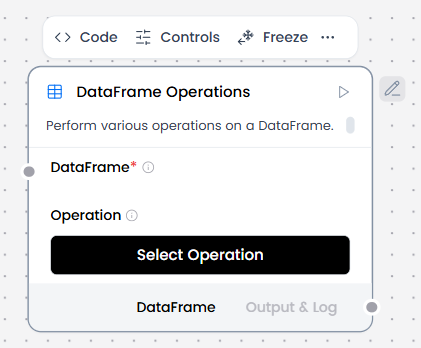
DataFrame Operations = default
What and how it can be used:
The DataFrame Operations component performs various operations on a DataFrame. It provides powerful data manipulation capabilities similar to pandas DataFrames in Python or data frames in R, enabling operations like filtering, sorting, grouping, aggregating, joining, pivoting, and statistical analysis on tabular data structures.
When/how the component should be used:
- Use when you need to perform complex operations on tabular data.
- Best for working with structured data in rows and columns.
- Perfect for aggregations, joins, and advanced data transformations.
- Create a new flow or use an existing flow.
- Add a DataFrame Operations component to the flow, and then connect DataFrame output from another component to the DataFrame input.
- In the Operations field, select the operation you want to perform on the incoming DataFrame. For example, the Filter operation filters the rows based on a specified column and value.
- Configure the operation’s parameters. The specific parameters depend on the selected operation. For example, if you select the Filter operation, you must define a filter condition using the Column Name, Filter Value, and Filter Operator parameters
Connections with other components:
- ChatOutput
- Batch Run
- Parser
- Save File
- Smart Function
- Split Text
- Type Convert
- Notify
- ChromaDB
Configurable settings:
- DataFrame
- Operation
Default settings:
- DataFrame
- Operation
Control Section:
- DataFrame
- Operation
Desired Behaviour:
- Preserves column structure
- Applies operations reliably
DataFrame Operations = Add Column
What and how it can be used:
The Add Column operation adds a new column to the DataFrame with a constant value. It creates a new column in the tabular data structure and populates all rows with the same specified value. This component enables adding fixed values, default settings, or static metadata to every row in a dataset.
When/how the component should be used:
- Use when you need to add a column with the same value for all rows
- Use to create a new column.
Connections with other components:
- ChatOutput
- Batch Run
- Parser
- Save File
- Smart Function
- Split Text
- Type Convert
- Notify
- ChromaDB
Configurable settings:
- DataFrame
- Operation
- New Column Name
- New Column Value
Default settings:
- DataFrame
- Operation
- New Column Name
- New Column Value
Control Section:
- DataFrame
- Operation
- New Column Name
- New Column Value
Default values:
- Operation : Add Column
Desired Behaviour:
- New column added without affecting others
- Preserve row count
DataFrame Operations = Drop Column
What and how it can be used:
The Drop Column operation removes a column from the DataFrame, specified by Column Name. It deletes one or more columns from the tabular data structure, creating a new DataFrame without the specified column. This component enables removing unnecessary, redundant, or sensitive fields from datasets.
When/how the component should be used:
- Use when you need to remove unwanted columns from a DataFrame
- Use to remove columns that are not needed downstream.
- Use to reduce data size and complexity.
- Use to eliminate sensitive or irrelevant fields.
- Use before exporting, embedding, routing, or analysis.
Connections with other components:
- ChatOutput
- Batch Run
- Parser
- Save File
- Smart Function
- Split Text
- Type Convert
- Notify
- ChromaDB
Configurable settings:
- DataFrame
- Operation
- Column Name
Default settings:
- DataFrame
- Operation
- Column Name
Control Section:
- DataFrame
- Operation
- Column Name
Default values:
- Operation : Drop Column
Desired Behaviour:
- Remove the specified column.
- Leave remaining data unchanged.
- Show an error if the column doesn’t exist.
DataFrame Operations = Filter
What and how it can be used:
The Filter operation filters the DataFrame based on a specified condition. The output is a DataFrame containing only the rows that matched the filter condition. This component enables selecting subsets of data by applying logical conditions on column values, returning only rows where the condition evaluates to true.
When/how the component should be used:
- Use to keep rows that meet specific conditions.
- Use before analysis, alerts, or reporting.
Connections with other components:
- ChatOutput
- Batch Run
- Parser
- Save File
- Smart Function
- Split Text
- Type Convert
- Notify
- ChromaDB
Configurable settings:
- DataFrame
- Operation
- Column Name
- Filter Value
- Filter Operator
Default settings:
- DataFrame
- Operation
- Column Name
- Filter Value
- Filter Operator
Control Section:
- DataFrame
- Operation
- Column Name
- Filter Value
- Filter Operator
Default values:
- Operation : Filter
- Filter Operator : equals
Desired Behaviour:
- Applies condition row-by-row
- Outputs only matching rows
DataFrame Operations = Head
What and how it can be used:
The Head operation retrieves the first n rows of the DataFrame, where n is set in the Number of Rows. The default is 5. This component enables quick inspection of the beginning of a dataset, useful for previewing data structure, validating imports, or displaying sample records without loading the entire dataset.
When/how the component should be used:
- Used to inspect the first N rows of a table.
- Use for quick data validation and sanity checks.
- Use when you want a small sample without processing the full dataset.
- Use during development, debugging, or exploration.
Connections with other components:
- ChatOutput
- Batch Run
- Parser
- Save File
- Smart Function
- Split Text
- Type Convert
- Notify
- ChromaDB
Configurable settings:
- DataFrame
- Operation
- Number of Rows
Default settings:
- DataFrame
- Operation
- Number of Rows
Control Section:
- DataFrame
- Operation
- Number of Rows
Default values:
- Operation : Filter
- Filter Operator : equals
Desired Behaviour:
- Returns the first N rows based on current order
- Does not change column types or values
- If fewer than N rows exist, returns all rows
DataFrame Operations = Rename Column
What and how it can be used:
The Rename Column operation renames an existing column in the DataFrame. It changes the name of one or more columns while preserving all data values and the order of columns. This component enables updating column names to follow naming conventions, improve clarity, or match expected schemas.
When/how the component should be used:
- Used to standardize column names in a schema.
- Use when integrating heterogeneous sources.
Connections with other components:
- ChatOutput
- Batch Run
- Parser
- Save File
- Smart Function
- Split Text
- Type Convert
- Notify
- ChromaDB
Configurable settings:
- DataFrame
- Operation
- Column Name
- New Column Name
Default settings:
- DataFrame
- Operation
- Column Name
- New Column Name
Control Section:
- DataFrame
- Operation
- Column Name
- New Column Name
Default values:
- Operation : Rename Column
Desired Behaviour:
- Rename column exactly as specified.
DataFrame Operations = Replace Value
What and how it can be used:
The Replace Value operation replaces a target value with a new value. All cells matching the target value are replaced with the new value. This component enables data cleaning, normalization, and transformation by finding and replacing specific values throughout the entire DataFrame or within specific columns.
When/how the component should be used:
- Used to replace specific values in one or more columns.
- Used to standardize inconsistent values across datasets.
- Use to clean data before analysis, routing, or storage.
- Use when missing, placeholder, or invalid values must be corrected.
- Use when deterministic data cleanup is required (no inference).
Connections with other components:
- ChatOutput
- Batch Run
- Parser
- Save File
- Smart Function
- Split Text
- Type Convert
- Notify
- ChromaDB
Configurable settings:
- DataFrame
- Operation
- Column Name
- Value to Replace
- Replacement Value
Default settings:
- DataFrame
- Operation
- Column Name
- Value to Replace
- Replacement Value
Control Section:
- DataFrame
- Operation
- Column Name
- Value to Replace
- Replacement Value
Default values:
- Operation: Replace Value
Desired Behaviour:
- Replace only exact matches.
- Leave all other values unchanged.
DataFrame Operations = Select Columns
What and how it can be used:
The Select Columns operation selects one or more specific columns from the DataFrame. It creates a new DataFrame containing only the specified columns, effectively projecting a subset of the data by removing unwanted columns while preserving all rows. This component enables focusing on relevant fields and simplifying data structures.
When/how the component should be used:
- Use when you need to reduce data to relevant fields.
- Use to simplify downstream processing.
Connections with other components:
- ChatOutput
- Batch Run
- Parser
- Save File
- Smart Function
- Split Text
- Type Convert
- Notify
- ChromaDB
Configurable settings:
- DataFrame
- Operation
- Columns to Select
Default settings:
- DataFrame
- Operation
- Columns to Select
Control Section:
- DataFrame
- Operation
- Columns to Select
Default values:
- Operation: Select Columns
Desired Behaviour:
- Output only specified columns.
- Preserve row order.
- Fail clearly if a column is missing.
DataFrame Operations = Sort
What and how it can be used:
The Sort operation sorts the DataFrame on a specific column in ascending or descending order. It arranges rows based on the values in one or more columns, enabling data organization by numeric values, alphabetical order, dates, or custom sorting criteria. This component provides flexible sorting capabilities for data analysis and presentation.
When/how the component should be used:
- Use when order matters.
- Use to order data by priority, time, or score.
- Use before presentation or batch processing.
Connections with other components:
- ChatOutput
- Batch Run
- Parser
- Save File
- Smart Function
- Split Text
- Type Convert
- Notify
- ChromaDB
Configurable settings:
- DataFrame
- Operation
- Column Name
- Sort Ascending
Default settings:
- DataFrame
- Operation
- Column Name
- Sort Ascending
Control Section:
- DataFrame
- Operation
- Column Name
- Sort Ascending
Default values:
- Operation : Sort
- Sort Ascending = on
Desired Behaviour:
- Explicit ascending/descending order
DataFrame Operations = Tail
What and how it can be used:
The Tail operation retrieves the last n rows of the DataFrame, where n is set in Number of Rows. The default is 5. This component enables quick inspection of the end of a dataset, useful for viewing recent entries, validating data imports, or displaying the most recent records without loading the entire dataset.
When/how the component should be used:
- Use to inspect the last N rows of a table.
- Used to verify recent or final entries in time-ordered data.
- Use for debugging batch or streaming outputs.
- Use when order matters (e.g. timestamps).
Connections with other components:
- ChatOutput
- Batch Run
- Parser
- Save File
- Smart Function
- Split Text
- Type Convert
- Notify
- ChromaDB
Configurable settings:
- DataFrame
- Operation
- Number of Rows
Default settings:
- DataFrame
- Operation
- Number of Rows
Control Section:
- DataFrame
- Operation
- Number of Rows
Default values:
- Operation : Tail
Desired Behaviour:
- Return exactly the last N rows (if available).
- Preserve the existing row order.
DataFrame Operations = Drop Duplicates
What and how it can be used:
The Drop Duplicates operation removes rows from the DataFrame by identifying all duplicate values within a single column. It eliminates duplicate records based on specified columns, keeping only the first or last occurrence of each unique value. This component enables data cleaning by removing redundant entries and ensuring data uniqueness.
When/how the component should be used:
- Used to remove repeated records.
- Use before storage or reporting.
Connections with other components:
- ChatOutput
- Batch Run
- Parser
- Save File
- Smart Function
- Split Text
- Type Convert
- Notify
- ChromaDB
Configurable settings:
- DataFrame
- Operation
- Column Name
Default settings:
- DataFrame
- Operation
- Column Name
Control Section:
- DataFrame
- Operation
- Column Name
Default values:
- Operation: Drop Duplicates
Desired Behaviour:
- Keep only the first occurrence
Run Flow
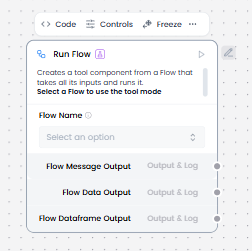
What and how it can be used:
The Run Flow component creates a tool component from a Flow that takes all its inputs and runs it. It enables executing another workflow/flow as a reusable component, composing complex workflows from simpler flows, creating modular and maintainable automation, and calling flows with parameters. This component provides flow composition and reusability within workflows, turning any flow into a callable tool.
When/how the component should be used:
- Use when you need to execute another flow as part of a workflow.
- You can use this component to chain flows together, run flows conditionally, and attach flows to Agent components as tools for agents to run as needed.
- When you select a flow for the Run Flow component, it uses the target flow’s graph structure to dynamically generate input and output fields on the Run Flow component.
- Add the Run Flow component.
- Select the sub flow you want to run.
- Connect the sub-flow to process the input data.
- Output of the sub-flow is returned through the Run Flow component.
- Ensure that the sub-flow has clearly defined input/output contracts.
- Connect the output port of the Run Flow component to the next downstream component in your flow that you want to receive the results.
Connections with other components:
- Chat Output
- Text Input
- Text Output
- Agent Core
- API Request
- Directory
- News Search
- RSS Reader
- SQL Database
- Web Search
- Language Model
- Batch Run
- Data Operations
- DataFrame Operations
- LLM Router
- Parser
- Python Interpreter
- Save File
- Smart Function
- Split Text
- Structured Output
- Type Convert
- Listen
- Loop
- Notify
- Smart Router
- Calculator
- Anonymization
- Guardrail
- Human-in-the-loop
- Bing Search API
- Google Search API
- ChromaDB
- If-Else
Configurable settings:
- Flow Name
Default settings:
- Flow Name
Control Section:
- Flow Name
- Session ID
Desired Behaviour:
- Run the sub-flow in isolation.
- Clear inputs and outputs.
MCP Tools
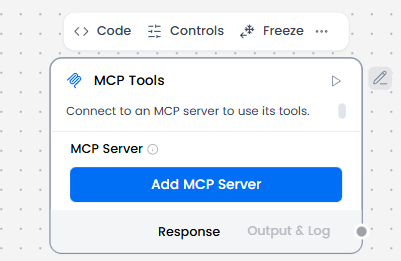
What and how it can be used:
The MCP (Model Context Protocol) Tools component connects to an MCP server to use its tools. It establishes connections to MCP servers, discovers available tools, invokes tool operations with parameters, handles tool responses, and integrates MCP tool capabilities into workflows. This component enables seamless integration with any MCP-compliant server to extend functionality through standardized tool protocols.
When/how the component should be used:
- Use when an agent needs external capabilities or to use local agents as tools.
- When you want to connect external MCP servers to your Langflow flow and allow agents to use tools from the MCP servers.
- When you want to use Langflow flows from other projects as tools.
- Create an MCP Server.
- Select the tools(flows) you want to use on Actions.
- Connect to Agent Core: MCP Tools must be exposed to an agent that can decide when and how to call them.
Connections with other components:
- ChatOutput
- Batch Run
- DataFrame Operations
- Parser
- Save File
- Split Text
- Type Convert
- Loop
- Notify
- ChromaDB
In tool mode:
- Agent Core
- Human-in-the-loop
Configurable settings:
- MCP Server
Default settings:
- MCP Server
Control Section:
- MCP Server
- Use Cached Server
Desired Behaviour:
- Make tools available.
- Clear input/output for each tool.
- Show clear errors when one of the tools is failing and identify which one.
Tool: Anonymisation
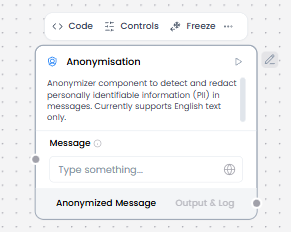
What and how it can be used:
The Anonymization component removes, masks, or replaces personally identifiable information (PII) and sensitive data from text, documents, or datasets to protect privacy and ensure compliance with regulations like GDPR, HIPAA, and CCPA. It detects and transforms sensitive information while maintaining data utility for analysis or processing.
When/how the component should be used:
- Use when handling personal or sensitive data that needs privacy protection.
- Use when processing data that contains personally identifiable information (PII) before sharing or storing.
- Connect data containing sensitive information to the Anonymisation component input.
- Configure which fields or data types should be anonymized (e.g., names, emails, phone numbers, addresses).
- Connect the anonymized output to downstream components for further processing or storage.
- Verify that sensitive data has been properly anonymized before sharing or logging
Connections with other components:
- ChatOutput
- Text Input
- Text Output
- Agent Core
- API Request
- Directory
- News Search
- RSS Reader
- SQL Database
- Web Search
- Language Model
- Batch Run
- LLM Router
- Parser
- Python Interpreter
- Save File
- Smart Function
- Split Text
- Structured Output
- Type Convert
- If-Else
- Listen
- Notify
- Smart Router
- Calculator
- Guardrail
- Human-in-the-loop
- Bing Search API
- ChromaDB
Configurable settings:
- Message (From Guardrail)
Default settings:
- Message (From Guardrail)
Control Section:
- Message
- Personally Identifiable Information
Default values:
- Nothing
Desired Behaviour:
- Replace PII with placeholders and Maintain message meaning
Tool: Guardrail
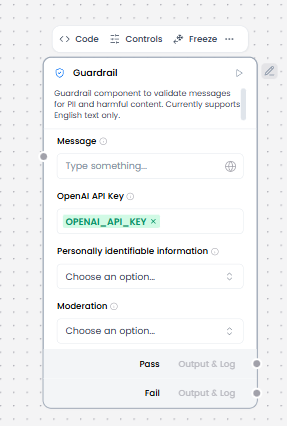
What and how it can be used:
The Guardrail component acts as a safety and quality control layer that validates, monitors, and filters inputs and outputs to ensure AI agent behavior remains safe, appropriate, and aligned with policies. It detects and prevents harmful content, policy violations, jailbreak attempts, PII leaks, hallucinations, and other undesired behaviors before they reach users or external systems.
When/how the component should be used:
- When compliance, safety, or trust is critical.
- When outputs can trigger real-world actions.
- Used to detect sensitive information, enforce content policies, validate outputs, and prevent unsafe behaviors before they cause problems.
- Used to validate output quality and accuracy.
- Implement guardrails using middleware to intercept execution at strategic points – before the agent starts, after it completes, or around model and tool calls.
- Use rule-based logic like regex patterns, keyword matching, or explicit checks. Fast, predictable, and cost-effective, but may miss nuanced violations.
Connections with other components:
- Chat Output
- Text Input
- Text Output
- Agent Core
- API Request
- Directory
- News Search
- RSS Reader
- SQL Database
- Web Search
- Language Model
- Batch Run
- LLM Router
- Parser
- Python Interpreter
- Save File
- Smart Function
- Split Text
- Structured Output
- Type Convert
- Listen
- Smart Router
- Calculator
- Anonymization
- Human-in-the-loop
- Bing Search API
- Google Search API
- ChromaDB
Configurable settings:
- Message (From component or write the message)
- OpenAI API Key
- Moderation ( Choose option from List select)
- Personally Identifiable Information ( Choose option from List select)
Default settings:
- Message (From component or write the message)
- OpenAI API Key
- Moderation ( Choose option from List select)
- Personally Identifiable Information ( Choose option from List select)
Control Section:
- Message
- Personally Identifiable Information
- OpenAI API Key
- Moderation
- Output Mode
Default values:
- Output Mode = Both Outputs
Desired Behaviour:
- Detect/redact PII, Flag harmful content, and Configurable sensitivity.
- Prevent unsafe, non-compliant, or undesired behavior while still allowing helpful responses when possible.
Tool: Human-in-the-loop
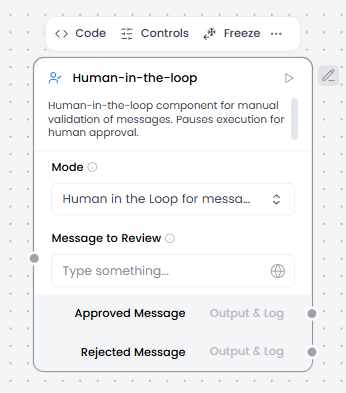
Mode = Human in the Loop for Messages
What and how it can be used:
The Human in the Loop (Messages mode) component manually validates messages by pausing execution to request human approval. It enables human oversight and intervention in automated workflows by stopping the flow, presenting messages or data for review, waiting for human decisions (approve, reject, modify), and resuming execution based on human input. This component ensures critical decisions, sensitive operations, or quality control checkpoints involve human judgment before proceeding.
When/how the component should be used:
- Use when human approval is required before sending messages.
- Use when human judgment or approval is required in a flow.
- Use for high-stakes decisions (financial transactions, legal actions, medical recommendations).
- Use for sensitive content that requires human moderation or ethical review.
- Add the following components: Chat Input, Guardrail, Anonymisation, Agent Core, Human in the loop, Chat Output.
- Connect Chat Input’s output to Guardrail’s Message Input.
- On the Guardrail select the Personally Identifiable Information to detect and select the Moderation to detect harmful content eg. Hate, Harassment and Self Harm.
- Connect the Guardrail’s Pass Output to the Anonymisation component.
- Connect the Guardrail’s Fail Output to a component of your liking depending on the flow you want to follow if it fails.
- On the Anonymisation component, configure which fields or data types should be anonymized (e.g., names, emails, phone numbers, addresses). Connect its output to the Agent Core component.
- In the Agent Core component, enter your OpenAI API key or configure the Agent component to use a different LLM.
- Connect the Agent Core component’s Output port to the Human-in-the-loop component’s input port.
- On the Human-in-the-loop component ensure the mode is set to Human in the Loop for messages.
- Connect the Human-in-the-loop component’s output to the Chat Output component, which returns the final response to the user or application.
Connections with other components:
- Chat Output
- Text Input
- Text Output
- Agent Core
- API Request
- Directory
- News Search
- RSS Reader
- SQL Database
- Web Search
- Language Model
- Batch Run
- LLM Router
- Parser
- Python Interpreter
- Save File
- Smart Function
- Split Text
- Structured Output
- Type Convert
- If-Else
- Listen
- Notify
- Smart Router
- Calculator
- Anonymization
- Guardrail
- Bing Search API
- Google Search API
- ChromaDB
In tool mode:
- Agent Core
Configurable settings:
- Mode ( Choose option from list select)
- Message to Review (From component or write the message)
Default settings:
- Message to Review (From component or write the message)
- Mode ( Choose option from list select)
Control Section:
- Mode
- Message to Review
- Timeout (seconds)
Default values:
- Mode = Human in the Loop for Messages
- Timeout (seconds) = 60
Desired Behaviour:
- Clear prompt to user
- Deterministic flow resumption
- Input validated if possible
Mode = Human in the loop for Tools
What and how it can be used:
The Human in the Loop component for Tools mode manually validates messages by pausing execution to request human approval to use connected tools. It intercepts tool calls before execution, presents tool details to a human reviewer, waits for approval/rejection decisions, and then proceeds based on human input. This component enables human oversight and control over sensitive or critical tool operations within automated workflows.
When/how the component should be used:
- Use when human judgment or approval is required in a flow to use certain tools.
- It also allows you to manually add the specific actions you want to pass without approval.
- Add the following components: Chat Input, Agent Core, Human-in-the-loop, Chat Output and Gmail.
- In the Gmail Composio API Key field, enter your Composio API key or use the COMPOSIO_API_KEY global variable.
- If the key is valid, the Alert is replaced by a Success indicator, and the Actions list populates with actions available to your API key.
- In the component’s header menu, enable Tool Mode.
- In the Actions list, configure the Gmail actions that you want to provide to the agent. You can select the actions you want to allow, and you can edit each action’s slug (agentic label) and description, which help the agent decide which tools to use.
- Connect the Gmail component’s Toolset output to the Human-in-the-loop component.
- On the Human-in-the-loop component, set the mode to Human in the loop for tools and connect the output to Agent Core’s Tools input.
- On the Human-in-the-loop component in the Actions to pass without approval field, add the Actions configured in the Gmail component that shouldn’t require human approval and should execute without pausing.
- Connect Chat Input’s output to Agent Core’s Input.
- In the Agent Core component, enter your OpenAI API key or configure the Agent component to use a different LLM.
- Connect the Agent Core component’s Output to Chat Output component, which returns the final response to the user or application.
Connections with other components:
- Agent Core
- Chat Output
- Chat Input
- Web Search
Configurable settings:
- Mode (Choose option from list select)
- Tools (From another component)
- Actions to pass without approval ( Write the actions)
Default settings:
- Mode (Choose option from list select)
- Tools (From another component)
- Actions to pass without approval ( Write the actions)
Control Section:
- Mode
- Tools
- Actions to pass without approval
- Timeout (seconds)
Default values:
- Mode = Human in the loop for Tools
- Timeout (seconds) = 60
Desired Behaviour:
- Give a clear prompt to the user.
- Deterministic flow resumption.
- Validate input if possible.
Tool: ChromaDB
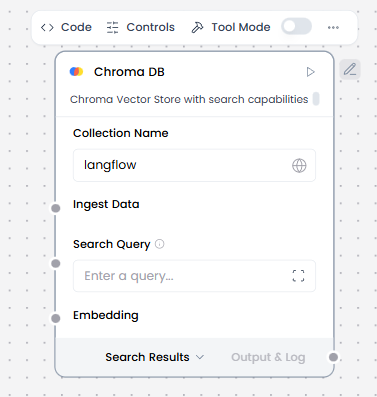
What and how it can be used:
Chroma DB is an open-source vector database component designed specifically for AI applications. It stores document embeddings (vector representations) and enables fast semantic search and retrieval. Chroma DB powers Retrieval-Augmented Generation (RAG) by finding relevant documents based on meaning rather than exact keyword matches, allowing AI agents to access and reference specific knowledge.
When/how the component should be used:
- Use for semantic search, RAG, or clustering over embeddings.
- Ideal for building RAG (Retrieval-Augmented Generation) applications.
- Perfect for question-answering systems that reference specific knowledge sources.
- Add the following components to the flow: ChromaDB, Knowledge Base – Files, Split Text, Embedding Model, Chat Input, Chat Output, Agent Core.
- Connect Knowledge-Base Files output to Split Text’s input.
- In the Split Text component, configure chunk size and overlap.
- Connect Split Text’s output to ChromaDB’s Ingest Data input.
- In the Embedding Model component, enter your OpenAI API key or configure the Agent component to use a different LLM.
- Connect Embedding Model’s output to ChromaDB’s Embedding Model input.
- In the ChromaDB component’s header menu, enable Tool Mode.
- In the Actions list, configure the ChromaDB actions that you want to provide to the agent. You can select the actions you want to allow, and you can edit each action’s slug (agentic label) and description, which help the agent decide which tools to use.
- Connect the Google Sheets component’s Toolset output to the Agent Core component’s Tools input.
- In the Agent Core component, enter your OpenAI API key or configure the Agent component to use a different LLM.
- Connect the Chat Input component to the Agent Core component’s Input port.
- Connect the Agent Core component’s Output port to the Chat Output component, which returns the final response to the user or application.
- This flow is a healthy RAG + agent pipeline using ChromaDB as the vector store. It can be used as a Clinical knowledge assistant (guideline QA).
Connections with other components:
- Chat Output
- Batch Run
- Data Operations
- DataFrame Operations
- Parser
- Save File
- Smart Function
- Split Text
- Type Convert
- Loop
- Notify
In tool mode:
- Agent Core
- Human-in-the-loop
Configurable settings:
- Collection Name ( Write the name of collection)
- Ingest Data (From Split Text component)
- Embedding (from Embedding Model component)
- Actions from Tool Mode
- Number of Results ( Write the number)
Default settings:
- Collection Name ( Write the name of collection)
- Ingest Data (From Split Text component)
- Embedding (from Embedding Model component)
- Actions from Tool Mode
- Number of Results ( Write the number)
Control Section:
- Collection Name
- Persist Directory
- Ingest Data
- Search Query
- Cache Vector Store
- Embedding
- Server CORS Allow Origins
- Server Host
- Server HTTP Port
- Server gRPC Port
- Server SSL Enabled
- Allow Diplicates
- Search Type
- Number of Results
- Limit
Default values:
- Mode = Human in the Loop for Messages
- Timeout (seconds) = 60
Desired Behaviour:
- Clear prompt to user
- Deterministic flow resumption
- Input validated if possible
Tool: Google Calendar
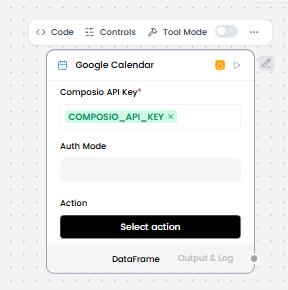
What and how it can be used:
The Google Calendar component connects to a user’s Google Calendar using Composio authentication to read or write events. It enables creating, reading, updating, and deleting calendar events, managing attendees, setting reminders, and querying availability. This component provides seamless integration with Google Calendar for scheduling and event management within workflows.
When/how the component should be used:
- Use when you need to integrate calendar functionality into workflows.
- Ideal for scheduling meetings, appointments, or events programmatically.
- Add the Google Calendar component to the flow.
- In the Composio API Key field, enter your Composio API key or use the COMPOSIO_API_KEY global variable.
- If the key is valid, the Alert is replaced by a Success indicator, and the Actions list populates with actions available to your API key.
- In the component’s header menu, enable Tool Mode.
- In the Actions list, configure the Google Calendar actions that you want to provide to the agent. You can select the actions you want to allow, and you can edit each action’s slug (agentic label) and description, which help the agent decide which tools to use.
- Connect the Google Calendar component’s Toolset output to the Agent Core component’s Tools input.
- In the Agent Core component, enter your OpenAI API key or configure the Agent component to use a different LLM.
- Connect the Chat Input component to the Agent Core component’s Input port.
- Connect the Agent Core component’s Output port to the Chat Output component, which returns the final response to the user or application.
Connections with other components:
- Chat Output
- Batch Run
- DataFrame Operations
- Parser
- Save File
- Split Text
- Type Convert
- Loop
- Notify
- ChromaDB
In tool mode:
- Agent Core
- Human-in-the-loop
Configurable settings:
- Composio API Key
- Action
Default settings:
- Composio API Key
- Action
Control Section:
- Composio API Key
- Action
- Auth Mode
- Entity ID
- Actions in tool mode
Default values:
- Entity ID = default
- Actions = GOOGLECALENDAR_CALENDAR_LIST_INSERT,
GOOGLECALENDAR_CALENDAR_LIST_UPDATE,
GOOGLECALENDAR_CALENDARS_DELETE,
GOOGLECALENDAR_CALENDARS_UPDATE,
GOOGLECALENDAR_CLEAR_CALENDAR
Desired Behaviour:
- Securely authenticate via Composio.
- Read and write events reliably.
- Handle API errors clearly.
- Ensure no duplicate event creation.
Tool: Google Meet
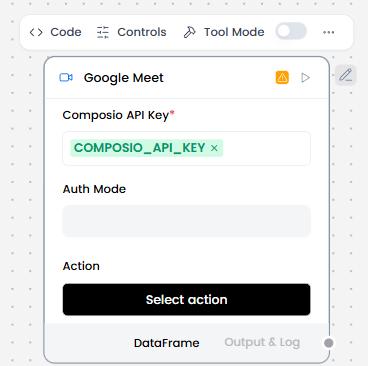
What and how it can be used:
The Google Meet component connects to the Google Meet API via the Composio toolkit using OAuth2 authentication. It exposes Google Meet actions as tools agents can call. This component enables creating, managing, and joining video meetings programmatically, scheduling virtual meetings, and integrating video conferencing capabilities into workflows.
When/how the component should be used:
- Use when you want an agent to schedule, manage, or interact with Google Meet sessions (e.g., creating meeting links, listing scheduled meetings) as part of an automated workflow.
- Perfect for automated meeting creation with calendar integration
- Add the Google Meet component to the flow.
- In the Composio API Key field, enter your Composio API key or use the COMPOSIO_API_KEY global variable.
- If the key is valid, the Alert is replaced by a Success indicator, and the Actions list populates with actions available to your API key.
- In the component’s header menu, enable Tool Mode.
- In the Actions list, configure the Google Meet actions that you want to provide to the agent. You can select the actions you want to allow, and you can edit each action’s slug (agentic label) and description, which help the agent decide which tools to use.
- Connect the Google Meet component’s Toolset output to the Agent Core component’s Tools input.
- In the Agent Core component, enter your OpenAI API key or configure the Agent component to use a different LLM.
- Connect the Chat Input component to the Agent Core component’s Input port.
- Connect the Agent Core component’s Output port to the Chat Output component, which returns the final response to the user or application.
Connections with other components:
- Chat Output
- Batch Run
- DataFrame Operations
- Parser
- Save File
- Split Text
- Type Convert
- Loop
- Notify
- ChromaDB
In tool mode:
- Agent Core
- Human-in-the-loop
Configurable settings:
- Composio API Key
- Action
Default settings:
- Composio API Key
- Action
Control Section:
- Composio API Key
- Action
- Auth Mode
- Entity ID
- Actions in tool mode
Default values:
- Entity ID = default
- Actions = GOOGLEMEET_CREATE_MEET,
GOOGLEMEET_GET_CONFERENCE_RECORD,
GOOGLEMEET_GET_MEET,
GOOGLEMEET_GET_PARTICIPANT_SESSION,
GOOGLEMEET_GET_RECORDINGS_BY_CONFERENCE_RECORD_ID
Desired Behaviour:
- Use Composio to securely authenticate without exposing credentials.
- After connecting, show a list of available Google Meet actions (e.g., create a meeting, list conferences). These actions are callable by agents.
- The agent must explicitly choose and call actions, nothing runs automatically.
Tool: Gmail
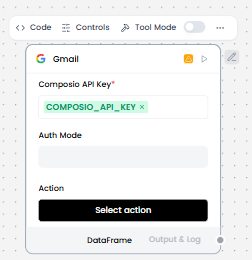
What and how it can be used:
The Gmail component connects to a user’s Gmail account using Composio-managed OAuth and executes Gmail actions (read, search, send, draft). It enables programmatic access to email operations including sending messages, reading emails, searching inbox, creating drafts, managing labels, and handling attachments. This component provides seamless integration with Gmail for email automation within workflows.
When/how the component should be used:
- Use when you need to automate email operations.
- Ideal for sending automated notifications and responses.
- Add the Gmail component to the flow.
- In the Composio API Key field, enter your Composio API key or use the COMPOSIO_API_KEY global variable.
- If the key is valid, the Alert is replaced by a Success indicator, and the Actions list populates with actions available to your API key.
- In the component’s header menu, enable Tool Mode.
- In the Actions list, configure the Gmail actions that you want to provide to the agent. You can select the actions you want to allow, and you can edit each action’s slug (agentic label) and description, which help the agent decide which tools to use.
- Connect the Gmail component’s Toolset output to the Agent Core component’s Tools input.
- In the Agent Core component, enter your OpenAI API key or configure the Agent component to use a different LLM.
- Connect Chat Input component to the Agent Core component’s Input port.
- Connect the Agent Core component’s Output port to the Chat Output component, which returns the final response to the user or application.
Connections with other components:
- Chat Output
- Batch Run
- DataFrame Operations
- Parser
- Save File
- Split Text
- Type Convert
- Loop
- Notify
- ChromaDB
In tool mode:
- Agent Core
- Human-in-the-loop
Configurable settings:
- Composio API Key
- Action
Default settings:
- Composio API Key
- Action
Control Section:
- Composio API Key
- Action
- Auth Mode
- Entity ID
- Actions in tool mode
Default values:
- Entity ID = default
- Actions = GMAIL_ADD_LABEL_TO_EMAIL,
GMAIL_CREATE_EMAIL_DRAFT,
GMAIL_CREATE_LABEL,
GMAIL_DELETE_DRAFT,
GMAIL_DELETE_MESSAGE
Desired Behaviour:
- Use Composio to securely authenticate without exposing credentials.
- Only access Gmail scopes explicitly granted by the user.
- Execute exactly the requested action (read, search, send, etc.).
- Show permission or auth errors clearly.
Tool: Google Sheet
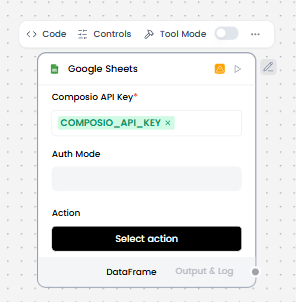
What and how it can be used:
The Google Sheets component connects to Google Sheets through the Composio platform using OAuth2 and exposes spreadsheet actions as tools for an Agent or as data operations in a flow. It enables reading, writing, updating, and managing spreadsheet data, creating sheets, formatting cells, performing calculations, and integrating spreadsheet operations into workflows. This component provides seamless integration with Google Sheets for data management and automation.
When/how the component should be used:
- Use when you need to read from, write to, or manipulate Google Sheets documents within a Langflow flow or when an agent needs sheet access.
- Best for syncing data between systems and spreadsheets.
- Add the Google Sheets component to the flow.
- In the Composio API Key field, enter your Composio API key or use the COMPOSIO_API_KEY global variable.
- If the key is valid, the Alert is replaced by a Success indicator, and the Actions list populates with actions available to your API key.
- In the component’s header menu, enable Tool Mode.
- In the Actions list, configure the Google Sheets actions that you want to provide to the agent. You can select the actions you want to allow, and you can edit each action’s slug (agentic label) and description, which help the agent decide which tools to use.
- Connect the Google Sheets component’s Toolset output to the Agent Core component’s Tools input.
- In the Agent Core component, enter your OpenAI API key or configure the Agent component to use a different LLM.
- Connect Chat Input component to the Agent Core component’s Input port.
- Connect the Agent Core component’s Output port to the Chat Output component, which returns the final response to the user or application.
Connections with other components:
- Chat Output
- Batch Run
- DataFrame Operations
- Parser
- Save File
- Split Text
- Type Convert
- Loop
- Notify
- ChromaDB
In tool mode:
- Agent Core
- Human-in-the-loop
Configurable settings:
- Composio API Key
- Action
Default settings:
- Composio API Key
- Action
Control Section:
- Composio API Key
- Action
- Auth Mode
- Entity ID
- Actions in tool mode
Default values:
- Entity ID = default
- Actions =GOOGLE_SHEETS_ADD_SHEET,
GOOGLE_SHEETS_AGGREGATE_COLUMN_DATA,
GOOGLE_SHEETS_APPEND_DIMENSION,
GOOGLE_SHEETS_BATCH_GET,
GOOGLE_SHEETS_BATCH_UPDATE
Desired Behaviour:
- Connect securely to a user’s Google Sheets via OAuth2 (through Composio).
- Require a valid Composio API key + an authorized account connection.
- Show only allowed actions (e.g., read, write, insert rows).
Tool: Google Search API
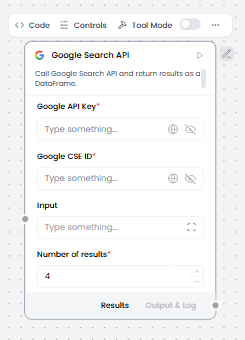
What and how it can be used:
The Google Search API component calls Google Search API and returns results as a DataFrame. It enables programmatic web searches, retrieves search results with metadata (titles, URLs, snippets, rankings), performs advanced search queries with filters, and integrates search capabilities into workflows. This component provides structured access to Google search results for data extraction, research automation, and content discovery.
When/how the component should be used:
- Use when you need to perform automated web searches.
- When you need to retrieve current, real-time information from the web within your AI workflows.
- Ideal for research and data gathering workflows.
- Add the Google Search API component to the flow.
- In the Google API Key field, enter your Google API Key.
- In the Google CSE ID field, enter your Google CSE ID.
- You can get/create your credentials at https://console.cloud.google.com.
- In the component’s header menu, enable Tool Mode.
- In the Actions list, configure the Google Search API actions that you want to provide to the agent. You can select the actions you want to allow, and you can edit each action’s slug (agentic label) and description, which help the agent decide which tools to use.
- Connect the Google Search API component’s Toolset output to the Agent Core component’s Tools input.
- In the Agent Core component, enter your OpenAI API key or configure the Agent component to use a different LLM.
- Connect the Chat Input component to the Agent Core component’s Input port.
- Connect the Agent Core component’s Output port to the Chat Output component, which returns the final response to the user or application.
Connections with other components:
- Chat Output
- Batch Run
- DataFrame Operations
- Parser
- Save File
- Split Text
- Type Converter
- Loop
- Notify
- ChromaDB
In tool mode:
- Agent Core
- Human-in-the-loop
Configurable settings:
- Google API Key
- Google CSE ID
- Input
- Number of results
Default settings:
- Google API Key
- Google CSE ID
- Input
- Number of results
Control Section:
- Google API Key
- Google CSE ID
- Input
- Number of results
- Actions in tool mode
Default values:
- Number of results = 4
- Actions = SEARCH_GOOGLE
Desired Behaviour:
- Return a small set of highly relevant results (default is 4).
- Preserve result order from Google.
- Clearly expose source URLs and snippets.
Tool: Google Docs
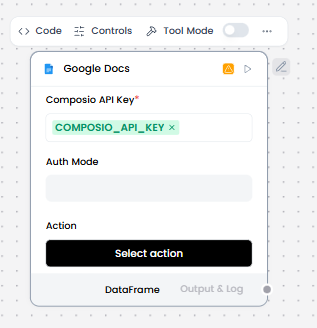
What and how it can be used:
The Google Docs component connects to Google Docs via Composio so that agents can call Google Docs actions (like copying or modifying documents) using authenticated Google Workspace credentials. Authentication is handled through OAuth2 or a bearer token managed by Composio. It enables creating, reading, updating, formatting documents, managing document structure, inserting content, collaborating on documents, and integrating document operations into workflows.
When/how the component should be used:
- Use when an agent needs to interact programmatically with Google Docs, such as reading, copying, or updating a document, within a LangFlow flow.
- Ideal for report generation and documentation workflows
- How to use:
- Add the Gmail component to the flow.
- In the Composio API Key field, enter your Composio API key or use the COMPOSIO_API_KEY global variable.
- If the key is valid, the Alert is replaced by a Success indicator, and the Actions list populates with actions available to your API key.
- In the component’s header menu, enable Tool Mode.
- In the Actions list, configure the Gmail actions that you want to provide to the agent. You can select the actions you want to allow, and you can edit each action’s slug (agentic label) and description, which help the agent decide which tools to use.
- Connect the Gmail component’s Toolset output to the Agent Core component’s Tools input.
- In the Agent Core component, enter your OpenAI API key or configure the Agent component to use a different LLM.
- Connect Chat Input component to the Agent Core component’s Input port.
- Connect the Agent Core component’s Output port to the Chat Output component, which returns the final response to the user or application.
Connections with other components:
- Chat Output
- Batch Run
- DataFrame Operations
- Parser
- Save File
- Split Text
- Type Convert
- Loop
- Notify
- ChromaDB
In tool mode:
- Agent Core
- Human-in-the-loop
Configurable settings:
- Composio API Key
- Action
Default settings:
- Composio API Key
- Action
Control Section:
- Composio API Key
- Action
- Entity ID
- Actions in tool mode
Default values:
- Entity ID = default
- Actions = GOOGLEDOCS_COPY_DOCUMENT,
GOOGLEDOCS_CREATE_DOCUMENT,
GOOGLEDOCS_CREATE_DOCUMENT_MARKDOWN,
GOOGLEDOCS_CREATE_FOOTER,
GOOGLEDOCS_CREATE_FOOTNOTE
Desired Behaviour:
- Authenticate with Google Docs via Composio
- Only expose actions that are authorized by the user’s Google account
- Actions appear as tools to agents when enabled
Tool: Outlook
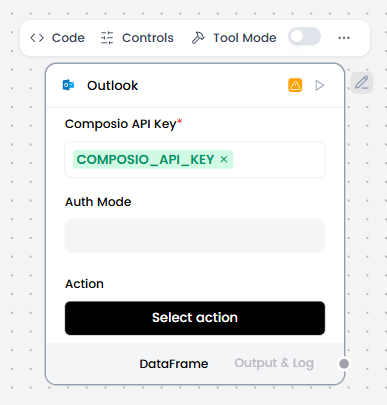
What and how it can be used:
The Outlook component connects to a user’s Microsoft Outlook account via Composio, enabling agents or flows to read and send emails, manage calendar events, and access mailbox data using delegated authentication. It provides programmatic access to email operations (send, read, search, delete), calendar management (create events, check availability, manage meetings), contact management, and task operations. This component enables seamless integration with Microsoft 365 for email and productivity automation.
When/how the component should be used:
- Use when you need to automate Outlook email operations.
- Ideal for email-based workflows and notifications.
- Best for calendar scheduling and meeting management.
- Use when a flow or agent needs to interact with a user’s Outlook email or calendar.
- Add the Outlook component to the flow.
- In the Composio API Key field, enter your Composio API key or use the COMPOSIO_API_KEY global variable.
- If the key is valid, the Alert is replaced by a Success indicator, and the Actions list populates with actions available to your API key.
- In the component’s header menu, enable Tool Mode.
- In the Actions list, configure the Outlook actions that you want to provide to the agent. You can select the actions you want to allow, and you can edit each action’s slug (agentic label) and description, which help the agent decide which tools to use.
- Connect the Outlook component’s Toolset output to the Agent Core component’s Tools input.
- In the Agent Core component, enter your OpenAI API key or configure the Agent component to use a different LLM.
- Connect the Chat Input component to the Agent Core component’s Input port.
- Connect the Agent Core component’s Output port to the Chat Output component, which returns the final response to the user or application.
Connections with other components:
- Chat Output
- Batch Run
- DataFrame Operations
- Parser
- Save File
- Split Text
- Type Convert
- Loop
- Notify
- ChromaDB
In tool mode:
- Agent Core
- Human-in-the-loop
Configurable settings:
- Composio API Key
- Action
Default settings:
- Composio API Key
- Action
Control Section:
- Composio API Key
- Action
- Entity ID
- Auth Mode
- Actions in tool mode
Default values:
- Entity ID = default
- Actions = OUTLOOK_ADD_MAIL_ATTACHMENT,
OUTLOOK_CREATE_CALENDAR,
OUTLOOK_CREATE_CONTACT_FOLDER,
OUTLOOK_CREATE_EMAIL_RULE,
OUTLOOK_CREATE_MAIL_FOLDER
Desired Behaviour :
- Authenticate securely via Composio without exposing credentials.
- Only access scopes explicitly granted by the user.
- Execute email and calendar actions correctly.
- Fails if authentication expires or permissions are missing.
Tool: OneDrive
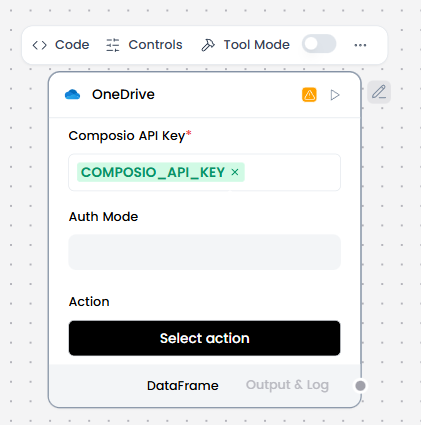
What and how it can be used:
The OneDrive component connects to Microsoft OneDrive via Composio-managed OAuth and exposes file and folder operations (read, list, upload, download). It enables programmatic access to cloud storage operations including file management (create, read, update, delete), folder navigation, file sharing, search functionality, and metadata management. This component provides seamless integration with Microsoft OneDrive for cloud storage automation within workflows.
When/how the component should be used:
- Use when you need to automate OneDrive file operations.
- Ideal for document management and backup workflows
- Use when a flow or agent needs to read from or write to a user’s OneDrive account.
- Add the OneDrive component to the flow.
- In the Composio API Key field, enter your Composio API key or use the COMPOSIO_API_KEY global variable.
- If the key is valid, the Alert is replaced by a Success indicator, and the Actions list populates with actions available to your API key.
- In the component’s header menu, enable Tool Mode.
- In the Actions list, configure the OneDrive actions that you want to provide to the agent. You can select the actions you want to allow, and you can edit each action’s slug (agentic label) and description, which help the agent decide which tools to use.
- Connect the OneDrive component’s Toolset output to the Agent Core component’s Tools input.
- In the Agent Core component, enter your OpenAI API key or configure the Agent component to use a different LLM.
- Connect the Chat Input component to the Agent Core component’s Input port.
- Connect the Agent Core component’s Output port to the Chat Output component, which returns the final response to the user or application.
Connections with other components:
- Chat Output
- Batch Run
- DataFrame Operations
- Parser
- Save File
- Split Text
- Type Convert
- Loop
- Notify
- ChromaDB
In tool mode:
- Agent Core
- Human-in-the-loop
Configurable settings:
- Composio API Key
- Action
Default settings:
- Composio API Key
- Action
Control Section:
- Composio API Key
- Action
- Entity ID
- Auth Mode
- Actions in tool mode
Default values:
- Entity ID = default
- Actions =
Desired Behaviour:
- Connect securely to a user’s OneDrive via OAuth2 (through Composio).
- Only accesses files and folders explicitly requested.
- Return clear errors for permission, auth, or missing-file issues.
- Does not modify or delete files unless explicitly instructed.