
What and how it can be used:
The Language Model component provides access to Large Language Models (LLMs) for natural language processing tasks. It sends prompts to AI models like OpenAI, Anthropic, Google and receives generated text responses. This component enables text generation, completion, question answering, summarization, translation, code generation, and other AI-powered language tasks within workflows.
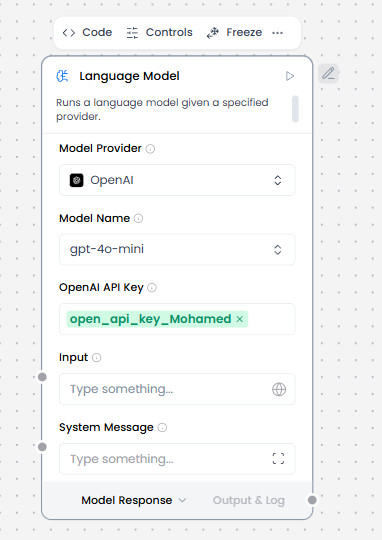
When/how the component should be used:
- Use for single prompt → single response tasks.
- Use when stateless execution is sufficient (no memory or tool calls).
- Ideal for text generation, summarization, extraction, or classification.
- Use for simple reasoning or content creation without multi-step workflows.
- Add the Language Model core component to your flow, and then enter your OpenAI API key.
- In the component’s header menu, click Controls, enable the System Message parameter, and then click Close.
- Add a Prompt Template component to your flow.
- In the Template field, enter some instructions for the LLM, such as You are an expert in geography who is tutoring high school students.
- Connect the Prompt Template component’s output to the Language Model component’s System Message input.
- Add Chat Input and Chat Output components to your flow. These components are required for direct chat interaction with an LLM.
- Connect the Chat Input component to the Language Model component’s Input, and then connect the Language Model component’s Message output to the Chat Output component.
Connections with other components:
- Chat Output
- Chat Input
- Text Output
- Text Input
- Agent Core
- API Request
- Directory
- News Search
- RSS Reader
- SQL Database
- Web Search
- Batch Run
- LLM Router
- Parser
- Python Interpreter
- Save File
- Smart Function
- Split Text
- Structured Output
- Type Convert
- Listen
- Notify
- Smart Router
- Calculator
- Anonymization
- Guardrail
- Human-in-the-loop
- Bing Search API
- ChromaDB
- If-Else
Configurable settings:
- Model provider ( Choose the model provider)
- Model Name ( Write the model name)
- Input
- OpenAI API Key ( Write the OpenAI API Key )
- System Message
Default settings:
- Model provider ( Choose the model provider)
- Model Name ( Write the model name)
- Input
- OpenAI API Key ( Write the OpenAI API Key )
- System Message
Control Section:
Model provider = OpenAI
- Model Provider
- Model Name
- OpenAI API Key
- Input
- System Message
- Stream
- Temperature
Default values:
- Model Provider = OpenAI
- Model Name = gpt-4o-mini
- Temperature = 0.10
Model provider = Google
- Model Provider
- Model Name
- OpenAI API Key
- Input
- System Message
- Stream
- Temperature
Default values:
- Model Provider = Google
- Model Name = gemini-1.5-pro
- Temperature = 0.10
Model provider = Anthropic
- Model Provider
- Model Name
- OpenAI API Key
- Input
- System Message
- Stream
- Temperature
Default values:
- Model Provider = Anthropic
- Model Name = claude-opus-4-20250514
- Temperature = 0.10
Desired Behaviour:
- Generate one response per request.