
Components manual
This guide explains how to configure and implement components using the Arkus platform.
Configuring components
After adding a component to a flow, you can configure its parameters and connect it to other components to define data flow and execution logic. Each component includes inputs, outputs, parameters, and controls specific to its purpose.
Component settings
To access a component’s settings, click the component in your workspace.
In the component’s header menu, you will find:
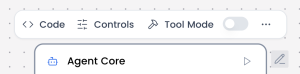
- Code: Defines the core logic of the component. This section contains the Python code that runs when the component is executed, including how inputs are processed and how outputs are generated. Changes made here directly affect the component’s behavior.
- Controls: Defines the configurable parameters of the component. Controls are the fields exposed to the user—such as text inputs, dropdowns, toggles, or sliders—that allow customization without modifying the underlying code.
- Tool Mode: Determines whether the component can be used as a callable tool by an agent or LLM. When enabled, the component exposes its inputs and outputs in a structured format so the agent can invoke it during execution.
- Additional actions: Delete, Duplicate, Copy, or Minimize are available when clicking the “…” icon in the component header.
In the component’s side or footer menu, you will find:

- Response: Defines how the component’s output is returned and formatted. This setting controls what data is exposed to downstream components or to the user, ensuring the response is clear, structured, and usable within the flow.
- Inputs: Specifies the data the component expects to receive from previous components. Inputs define the type, structure, and naming of incoming values used during execution.
- Outputs: Defines the data produced by the component after execution. Outputs can be connected to other components in the flow and are essential for chaining logic across nodes.
Component connections
Components are connected by linking the output of one component to the input of another, defining how data flows through the flow. To create a connection, click and drag from an output port of a component to a compatible input port on another component.
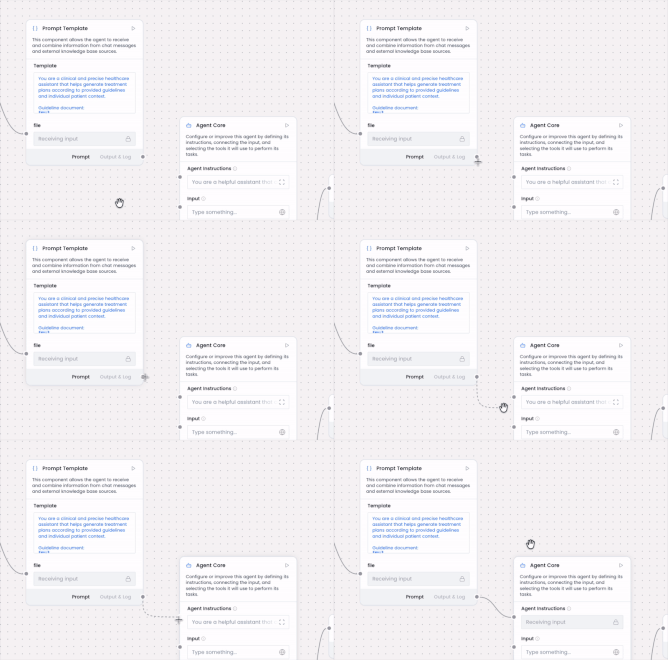
To remove a connection, click the connection line to select it, then press the Delete key on your keyboard.
List of components
The components list provides an overview of all available components in the platform. Each component serves a specific function and can be combined with others to build complete flows. The following section includes an indexed list with direct links and brief explanations to help you understand, configure, and connect each component.

Agent Core
The Agent Core component is the central orchestration unit of an AI agent.
Read moreAnonymisation
The Anonymization component removes, masks, or replaces personally identifiable information (PII) and sensitive data from text, documents, or datasets to...
Read moreAPI Request
The API Request component makes HTTP requests to external APIs and services, enabling workflows to interact with third-party systems. It sends HTTP requests...
Read moreBatch Run
The Batch Run component processes multiple inputs or tasks sequentially or in parallel, allowing the agent to handle bulk operations efficiently. It takes a...
Read moreCalculator
The Calculator component performs basic arithmetic operations on a given expression. It evaluates mathematical expressions containing numbers and arithmetic...
Read moreChat Input
Capture user messages directly from the chat interface in a conversational format.
Read moreChat Output
The Chat Output component displays AI agent responses in a conversational chat interface. It renders messages from the agent in real-time, maintaining a...
Read moreChromaDB
Chroma DB is an open-source vector database component designed specifically for AI applications. It stores document embeddings (vector representations) and...
Read moreCurrent Date
The Current Date component provides the current date and time information to workflows. It generates timestamps, calculates date ranges, formats dates in...
Read moreData Operations
The Data Operations component performs various operations on a Data object. It manipulates, transforms, and processes data objects through different...
Read moreDataFrame Operations
The DataFrame Operations component performs various operations on a DataFrame. It provides powerful data manipulation capabilities similar to pandas...
Read moreEmbedding Model
The Embedding Model component converts text into numerical vector representations (embeddings) that capture semantic meaning. These vectors enable similarity...
Read moreGmail
The Gmail component connects to a user's Gmail account using Composio-managed OAuth and executes Gmail actions (read, search, send, draft). It enables...
Read moreGoogle Calendar
The Google Calendar component connects to a user's Google Calendar using Composio authentication to read or write events. It enables creating, reading,...
Read moreGoogle Docs
The Google Docs component connects to Google Docs via Composio so that agents can call Google Docs actions (like copying or modifying documents) using...
Read moreGoogle Meet
The Google Meet component connects to the Google Meet API via the Composio toolkit using OAuth2 authentication. It exposes Google Meet actions as tools...
Read moreGoogle Sheet
The Google Sheets component connects to Google Sheets through the Composio platform using OAuth2 and exposes spreadsheet actions as tools for an Agent or as...
Read moreGuardrail
The Guardrail component acts as a safety and quality control layer that validates, monitors, and filters inputs and outputs to ensure AI agent behavior...
Read moreIf-Else
The If-Else component routes an input message to a corresponding output based on text comparison. It evaluates the input text against defined conditions and...
Read moreKnowledge Base – Files
The Knowledge Base - Files component stores and manages documents that the AI agent can search through and retrieve information from. It acts as a repository...
Read moreLanguage Model
The Language Model component provides access to Large Language Models (LLMs) for natural language processing tasks. It sends prompts to AI models like...
Read moreListen
The Listen component waits for and receives notifications from other parts of the workflow. It works specifically with the Notify component to enable...
Read moreLLM Router
The LLM Router component intelligently selects and routes requests to the most appropriate language model based on query characteristics, complexity, cost...
Read moreLoop
The Loop component iterates over a list of Data objects, outputting one item at a time and aggregating results from loop inputs. It processes each item in a...
Read moreMCP Tools
The MCP (Model Context Protocol) Tools component connects to an MCP server to use its tools. It establishes connections to MCP servers, discovers available...
Read moreNews Search
The News Search component searches specifically through news sources and media outlets to find recent articles, breaking news, and journalistic content. It...
Read moreNotify
The Notify component sends notifications or messages to other parts of the workflow, enabling asynchronous communication and event-driven architectures. It...
Read moreOutlook
The Outlook component connects to a user's Microsoft Outlook account via Composio, enabling agents or flows to read and send emails, manage calendar events,...
Read moreParser
The Parser component extracts, transforms, and structures data from various formats (HTML, JSON, XML, CSV, PDF, etc.) into a usable format for the agent. It...
Read morePrompt Template
The Prompt Template component creates structured, reusable instruction formats for AI agents. It allows you to define consistent prompting patterns with...
Read morePython Interpreter
The Python Interpreter component executes Python code dynamically within the workflow, allowing for complex calculations, data processing, API calls, file...
Read moreRSS Reader
The RSS Reader component fetches and parses content from RSS/Atom feeds, allowing AI agents to access regularly updated content from websites, blogs, news...
Read moreRun Flow
The Run Flow component creates a tool component from a Flow that takes all its inputs and runs it. It enables executing another workflow/flow as a reusable...
Read moreSmart Router
The Smart Router component intelligently directs user requests to the most appropriate agent, workflow, or processing path based on the content, intent, or...
Read moreSplit Text
The Split Text component divides large text content into smaller chunks or segments based on specified criteria (separator). This is essential for processing...
Read moreSQL Database
The SQL Database component enables workflows to connect to, query, and manipulate data in relational databases using SQL (Structured Query Language). It...
Read moreStructured Output
The Structured Output component ensures that AI agent responses follow a specific, predefined format or schema. It constrains the model's output to match...
Read moreText Input
The Text Input component accepts a text string input and then passes it to other components as Message Data (a data object) containing only the provided...
Read moreText Output
The Text Output component displays text responses in a static format without conversation context. It presents plain text results without message objects or...
Read moreType Convert
The Type Convert component transforms data from one type or format to another, ensuring compatibility between different components and proper data handling...
Read moreURL
The URL component fetches content from one or more web pages, following links recursively. It acts as a web scraper that can crawl websites, download page...
Read moreWeb Search
The Web Search component enables AI agents to search the internet in real-time and retrieve current information from web sources. It connects to search...
Read more