
Components manual
This guide explains how to configure and implement components using the Arkus platform.
Configuring components
After adding a component to a flow, you can configure its parameters and connect it to other components to define data flow and execution logic. Each component includes inputs, outputs, parameters, and controls specific to its purpose.
Component settings
To access a component’s settings, click the component in your workspace.
In the component’s header menu, you will find:
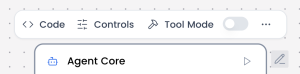
- Code: Defines the core logic of the component. This section contains the Python code that runs when the component is executed, including how inputs are processed and how outputs are generated. Changes made here directly affect the component’s behavior.
- Controls: Defines the configurable parameters of the component. Controls are the fields exposed to the user—such as text inputs, dropdowns, toggles, or sliders—that allow customization without modifying the underlying code.
- Tool Mode: Determines whether the component can be used as a callable tool by an agent or LLM. When enabled, the component exposes its inputs and outputs in a structured format so the agent can invoke it during execution.
- Additional actions: Delete, Duplicate, Copy, or Minimize are available when clicking the “…” icon in the component header.
In the component’s side or footer menu, you will find:

- Response: Defines how the component’s output is returned and formatted. This setting controls what data is exposed to downstream components or to the user, ensuring the response is clear, structured, and usable within the flow.
- Inputs: Specifies the data the component expects to receive from previous components. Inputs define the type, structure, and naming of incoming values used during execution.
- Outputs: Defines the data produced by the component after execution. Outputs can be connected to other components in the flow and are essential for chaining logic across nodes.
Component connections
Components are connected by linking the output of one component to the input of another, defining how data flows through the flow. To create a connection, click and drag from an output port of a component to a compatible input port on another component.
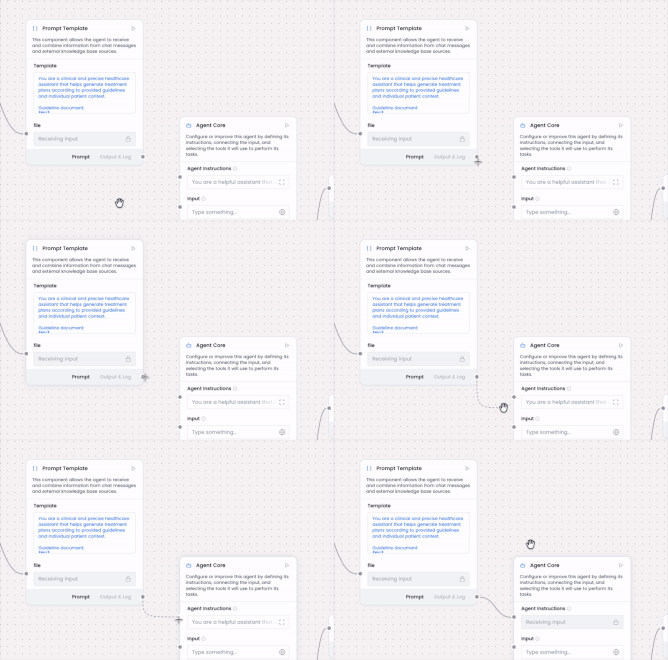
To remove a connection, click the connection line to select it, then press the Delete key on your keyboard.
List of components
Every component in the platform does one job and connects to others to build a flow. The list below links to each one with a short description.
Agent Core
Combines an input Message, your instructions, this component's own earlier turns in the active session, a selected model, and any connected tools, then lets...
Read moreAPI Request
The API Request component makes HTTP requests to external APIs and services, enabling workflows to interact with third-party systems. It sends HTTP requests...
Read moreBatch Run
Sends every row of a DataFrame to a connected language model with the same instructions, and returns the rows again with one model response added to each.
Read moreCalculator
Evaluates an arithmetic expression built from numbers, the operators + - * / and **, and parentheses, and returns the result as Data.
Read moreChat Input
Capture user messages directly from the chat interface in a conversational format.
Read moreChat Output
Displays a connected Message in chat. Sender Type defaults to Machine and Sender Name defaults to AI.
Read moreChromaDB
Stores embedded Data in an Arkus-managed collection and retrieves semantic matches for flows or Agent Core.
Read moreClinicalTrials.gov
The ClinicalTrials.gov component searches the public ClinicalTrials.gov registry for clinical studies and fetches protocol details such as eligibility...
Read moreComposio API Key
How to create a Composio project API key with the permissions Arkus Composio components need, and what to do when a component reports missing key permissions.
Read moreCurrent Date
Returns the current date and time in a timezone you choose, as one Message in a fixed format.
Read moreData Operations
Applies one local operation to Data, including key changes, filtering, combining, paths, and jq expressions.
Read moreDataFrame Operations
Applies one local row or column operation to a DataFrame, including filters, sorting, previews, and column changes.
Read moreEmbedding Model
Configures an Arkus or OpenAI embeddings client for connected vector stores. It does not accept text or return raw vectors.
Read moreFitbit
The Fitbit component connects a user's Fitbit account through Google Health OAuth and fetches profile, activity and fitness, health metrics, hydration, and...
Read moreFoodData Central
The FoodData Central component searches the USDA FoodData Central database and returns nutrient profiles, serving sizes, portions, and Nutrition Facts label...
Read moreGmail
Runs Gmail actions on an account you connect through Composio, as tools for an Agent or as one action in a flow.
Read moreGoogle Calendar
Runs Google Calendar actions on an account you connect through Composio, as tools for an Agent or as one action in a flow.
Read moreGoogle Docs
Runs Google Docs actions on an account you connect through Composio, as tools for an Agent or as one action in a flow.
Read moreGoogle Meet
Runs Google Meet actions on an account you connect through Composio, as tools for an Agent or as one action in a flow.
Read moreGoogle Sheets
Runs Google Sheets actions on an account you connect through Composio, as tools for an Agent or as one action in a flow.
Read moreGuardrail
Routes an English Message to Pass or Fail using selected PII entities or OpenAI moderation categories. It does not redact or verify jailbreaks or...
Read moreICD-10-CM Medical Coding
The ICD-10-CM Medical Coding component gives an Agent the widely used ICD-10-CM diagnosis code set, so it can suggest and check codes for a clinical note.
Read moreICD-11 Medical Coding
The ICD-11 Medical Coding component turns a concise diagnosis phrase into ICD-11 candidates from the World Health Organization API, with codes, titles,...
Read moreIf-Else
The If-Else component routes an input message to a corresponding output based on text comparison. It evaluates the input text against defined conditions and...
Read moreImage Knowledge Base
Provides Agent Core with curated PNG and JPEG references it can select by description and show in Builder chat answers.
Read moreKnowledge Base – Files
Reads uploaded files and returns their processed content to the rest of a flow, as a DataFrame for file-by-file steps or as raw text for a message-based...
Read moreLanguage Model
Sends an input, and an optional system message, to one chat model from Arkus, Anthropic, Google, or OpenAI, and returns the reply as a Message. Use Agent...
Read moreLeyr EHR Connector
The Leyr EHR Connector component reaches a connected electronic health record through Leyr's unified API to look up care units, practitioners, patients, and...
Read moreLLM Router
Asks a judge model to pick one of the language models you connected, favoring quality, speed, cost, or a balance of them, then returns that model's reply...
Read moreLoop
Sends the rows of a DataFrame through a repeated path one at a time, in order, and collects what each pass returns into one DataFrame when the last row is done.
Read moreMCP Tools
Connects to a Model Context Protocol server you have saved, discovers the tools it offers, and either exposes the enabled ones to Agent Core or runs one...
Read moreNews Search
Retrieves Google News RSS into a DataFrame of titles, links, publication dates, and summaries.
Read moreOpenFDA
The OpenFDA component searches openFDA drug data across labeling, the NDC directory, Drugs@FDA approvals, recalls, shortages, and adverse-event reports for a...
Read moreOutlook
Runs Outlook actions on a Microsoft 365 account you connect through Composio, as tools for an Agent or as one action in a flow.
Read moreParser
Formats an incoming Data or DataFrame value with a template, or converts it to a plain string, and returns the result as one Message. It does not parse...
Read morePDF Fetch
The PDF Fetch component downloads PDFs from public URLs and extracts their text so agents can read published papers, guidance documents, and product...
Read morePrompt Template
Combines fixed instruction text with values taken from the flow. Each placeholder you write in the template becomes an input you can connect.
Read moreDeidentifier
Replaces each detected value of the enabled categories with a stable tag, using the current flow's own session mapping. A paired Pseudonym Resolver component...
Read morePubMed
The PubMed component searches biomedical literature, fetches records by PMID, and finds related articles through the NCBI E-utilities, optionally returning...
Read moreHealth Questionnaire
Runs standard questionnaires, such as PHQ-9 or GAD-7, as a tool an Agent uses to ask one question at a time. It checks each answer, returns the next...
Read morePseudonym Resolver
Resolves each intact pseudonymization tag in a Message back to its original value, using the current flow's own session mapping. Leaves unknown and damaged...
Read moreRSS Reader
Fetches one RSS feed into a DataFrame. It reads RSS item elements, not Atom entries.
Read moreRun Flow
Runs a saved flow from inside the current one. Selecting the flow creates a field for each of its inputs, and its result comes back as a Message, Data, or...
Read moreSplit Text
The Split Text component divides large text content into smaller chunks or segments based on specified criteria (separator). This is essential for processing...
Read moreSQL Database
Runs one SQL query against a SQLAlchemy-compatible database and returns the result as a DataFrame, either as a fixed flow step or as a query tool for Agent...
Read moreStructured File
The Structured File component loads a single CSV, Excel, Parquet, JSON, or YAML file and exposes it as table rows or structured data for downstream components.
Read moreStructured Output
Uses a connected model to extract schema fields into Data or DataFrame. Model support and output failures remain possible.
Read moreText Input
Turns text you type, or text a connected component supplies, into a Message that the rest of the flow can use. The Message carries only that text, with no...
Read moreText Output
Creates a new Message from supplied text as a flow output. It does not emit a Playground chat event or retain incoming metadata.
Read moreType Convert
Converts a value between the Message, Data, and DataFrame types so two components with different input and output types can be connected.
Read moreUI Block
The UI Block component turns a data payload into rich inline UI such as charts, cards, metric groups, alerts, summaries, data tables, and flowcharts,...
Read moreWeb Fetch
Fetches the pages at the URLs you give it, rendering dynamic content first, and returns the extracted text as rows or as one message. It fetches only those...
Read moreWeb Search
Searches the public web through Linkup and returns result rows, an answer with its sources, or a structured result. Searches run on Arkus credits unless you...
Read moreWger Exercises
The Wger Exercises component looks up exercises, muscles, categories, and equipment from the public wger catalog to support workout ideas and...
Read more