
What and how it can be used:
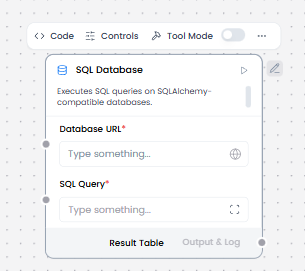
The SQL Database component enables workflows to connect to, query, and manipulate data in relational databases using SQL (Structured Query Language). It provides read and write access to database tables, supports complex queries with joins and aggregations, executes stored procedures, and manages transactions. This component acts as the bridge between AI workflows and structured data storage systems.
When/how the component should be used:
- Use when you need to store, retrieve, or update structured data in a database.
- Best for complex data queries involving relationships and aggregations.
- When an Agent needs to access or store information in a database.
- Use your own sample database or create a test database.
- Add an SQL Database component to your flow.
- In the Database URL field, add the connection string for your database, such as sqlite:///test.db.
- You can enter an SQL query in the SQL Query field or use the port to pass a query from another component, such as a Chat Input component.
- To make this component more dynamic in an agentic context, use an Agent Core component to transform natural language input to SQL queries, as explained in the following steps.
- Click the SQL Database component to expose the component’s header menu, and then enable Tool Mode.
- In Tool Mode, no query is set in the SQL Database component because the agent will generate and send one if it determines that the tool is required to complete the user’s request.
- Add an Agent Core component to your flow, and then enter your OpenAI API key.If you want to use a different model, edit the Model Provider, Model Name, and API Key fields accordingly.
- Connect the SQL Database component’s Toolset output to the Agent component’s Tools input.
- Connect Chat Output to the Agent Core to receive the responses.
Connections with other components:
- Chat Output
- Batch Run
- DataFrame Operations
- Parser
- Save File
- Split Text
- Type Convert
- Loop
- Notify
- ChromaDB
In tool mode:
- Agent Core
- Human-in-the-loop
Configurable settings:
- Database URL (Write the URL)
- SQL Query (Write the SQL query)
Default settings:
- Database URL (Write the URL)
- SQL Query (Write the SQL query)
Control Section:
- Database URL
- SQL Query
- Include Columns
- Add Error
- Actions in tool mode
Default values:
- Include Columns = on
In tool mode:
- Actions = RUN_SQL_QUERY
Desired Behaviour:
- Run queries.
- Default to read-only.